 WeightTrack
User guide
Everything WeightTrack can do, step by step. The pictures use example data, so your screens will show your own figures.
Contents
1. Setting up
The first time you open WeightTrack, a short setup asks a few questions. Each screen can be skipped, and you can change everything later in Profile & goals.
- Units. Choose stones & pounds, pounds or kilograms.
- About you. Your gender, height and date of birth. These are used for your BMI and daily calories. Pick the day and month from the lists and type the year.
- Your weight today. This becomes your first weigh-in.
- Your goal. A goal weight, with your healthy weight range for your height shown underneath, and a goal date if you'd like one. Tap No goal for now if you'd rather just track your progress.
- Stay on track. Turn on a weekly weigh-in reminder and a weekly summary if you'd like them.
Afterwards, a Getting started card on the Weight tab points you to anything you skipped, such as setting a goal or connecting Health Connect. Hide it with the cross when you're done.
Back to contents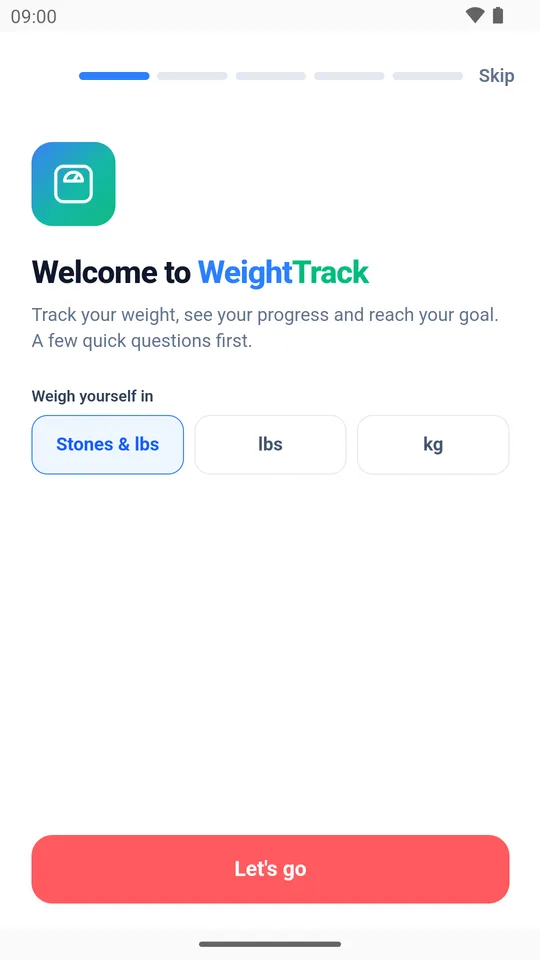
2. Logging a weigh-in
Tap the red + button in the middle of the bar at the bottom of the screen.
- Type your weight on the keypad. Your last weight is shown underneath for comparison. In stones & pounds, tap st or lbs to choose which one you're typing, and pounds can have a decimal place, such as 4.5.
- Add a note if you like, such as "after the gym".
- It's dated today, in the morning. Tap More details to change the date or time of day, or to add your body fat percentage or waist measurement.
- Tap Save.
When you reach a milestone, such as each half stone lost or a quarter of the way to your goal, WeightTrack celebrates with you.
Tip: weigh yourself at the same time of day, ideally first thing in the morning, so your weigh-ins compare fairly.
Back to contents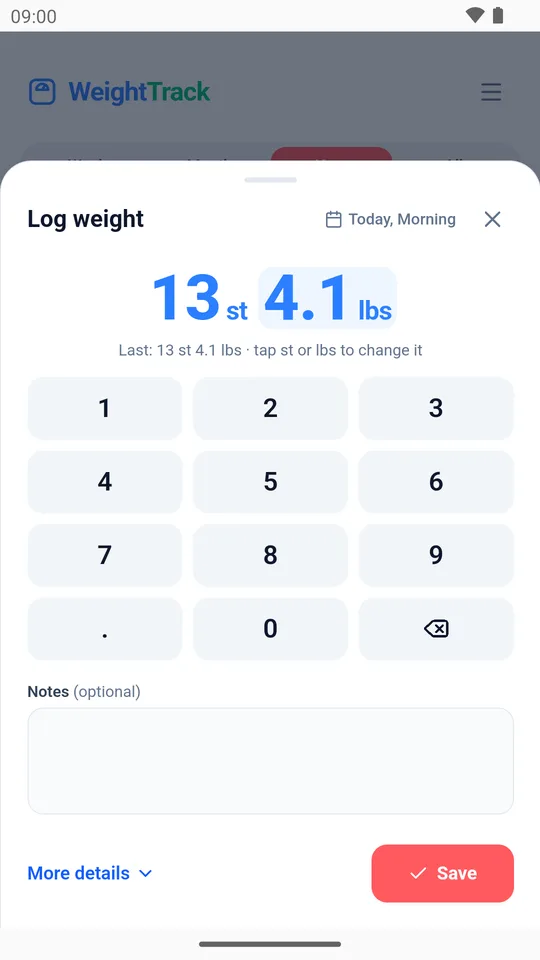
3. The Weight tab and chart
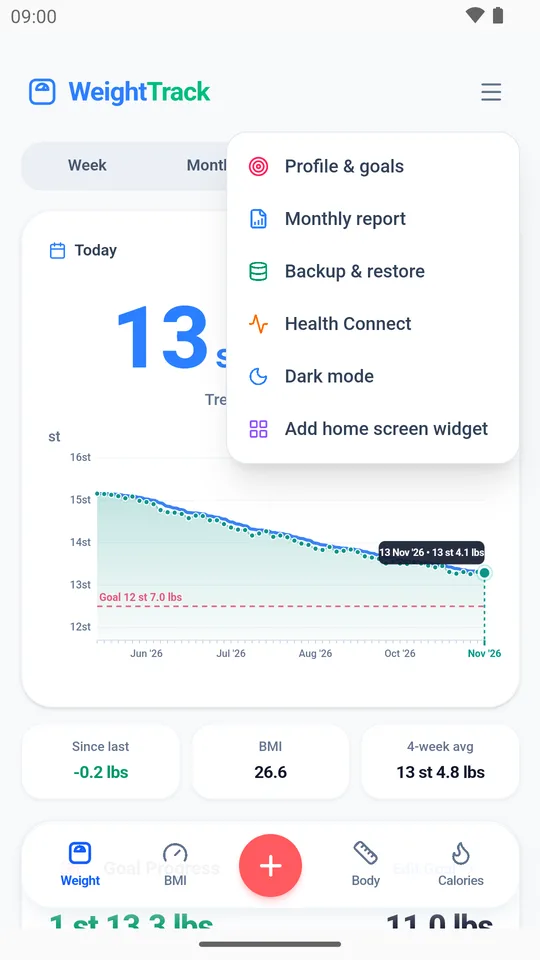
The Weight tab shows your latest weight in large numbers, with a chart of your progress underneath.
- Week, Month, Year and All change how much of your history the chart shows.
- Tap or drag across the chart to see the weight on any day.
- Trend adds a smoothed line that evens out the day-to-day ups and downs, such as water and salt, so you can see where your weight is really heading.
- Steps shows your daily steps behind the chart, once Health Connect is connected.
- The dashed line is your goal weight.
Underneath are three boxes: the change since your last weigh-in, your BMI and your average over the last four weeks.
Back to contents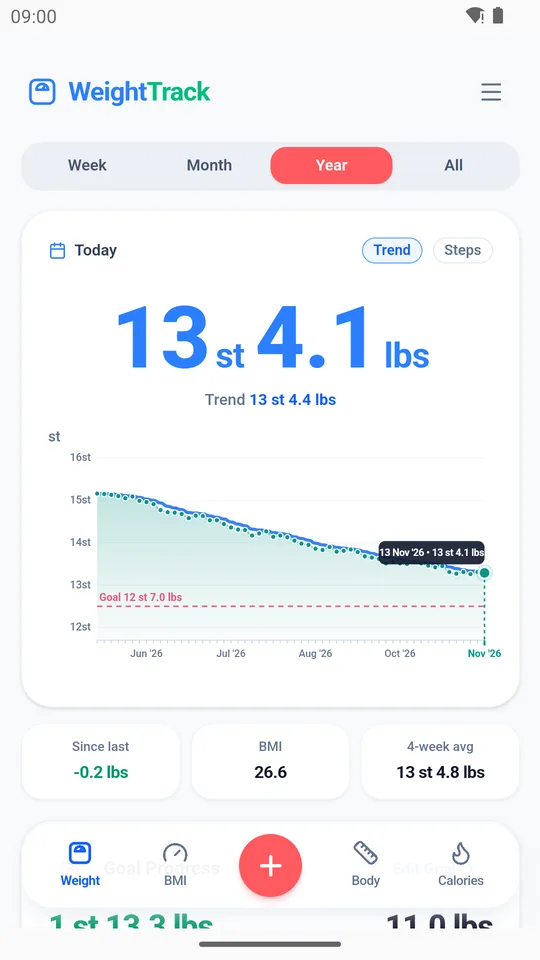
4. Your goal
Scroll down the Weight tab to the Goal Progress card. It shows:
- how much you've lost (or gained) so far, and how much is left;
- a progress bar from your start weight to your goal;
- whether you're on pace, and roughly when you'll reach your goal at your current rate;
- the daily calories to reach your goal by your goal date. Tap it to open the Calories tab.
Healthy goals
WeightTrack won't let a weight loss goal go below a healthy weight for your height (a BMI of 18.5). If your goal date would mean losing more than a safe 2 lbs (0.9 kg) a week, the card turns red and suggests a date you can reach at a steady 1 lb a week. Tap Use to switch to it.
Tap Edit Goal to change your goal weight or date.
Back to contents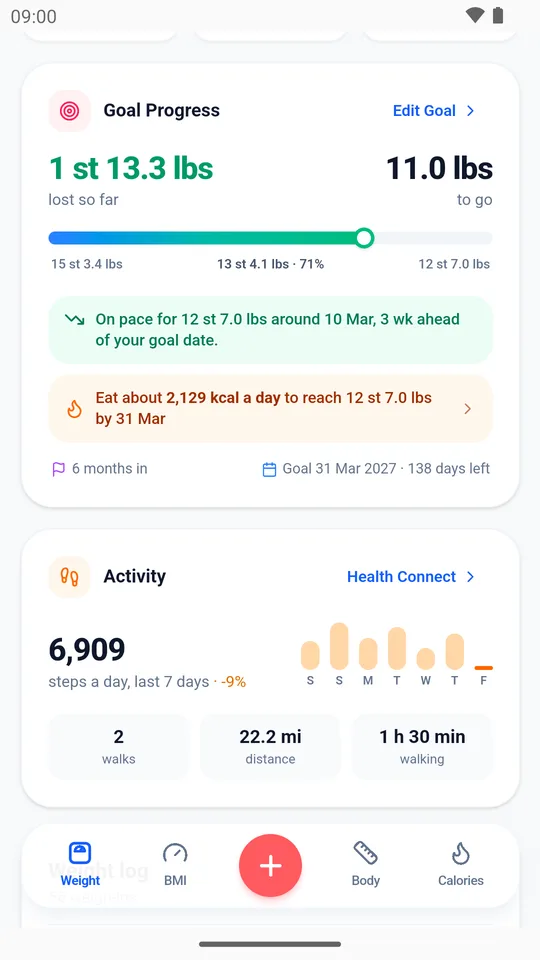
5. Your weigh-ins
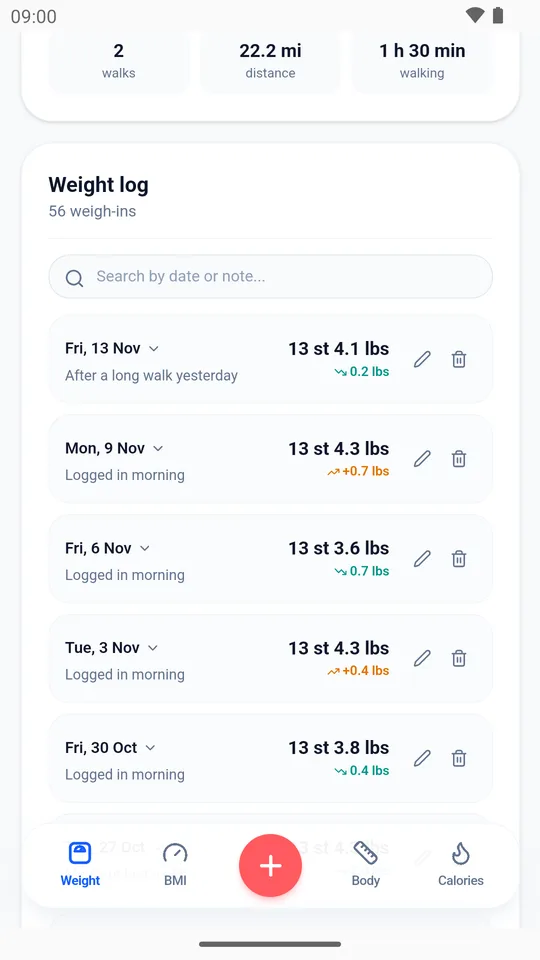
At the bottom of the Weight tab is a list of every weigh-in, newest first, with any notes.
- Search by date or by a word in your notes.
- Tap the pencil to change a weigh-in, or the bin to delete it.
- You can also tap a point on the chart to change that weigh-in.
6. Steps from Health Connect
WeightTrack can show your steps and walks from Google Fit, or any other app that shares them with Health Connect. It can also send your weigh-ins to Health Connect so your other health apps see them.
- Open the menu (the three lines, top right) and tap Health Connect, or tap Connect on the Activity card.
- Allow access to the things you'd like to share: steps and distance, walks, body fat and sending weigh-ins.
- If you use Google Fit, open Google Fit, go to Profile > Settings and turn on Sync Fit with Health Connect.
The Activity card on the Weight tab then shows your average steps a day over the last week, with a bar for each day.
Tip: if tapping Connect says nothing was allowed without asking you, Android has stopped showing the permission screen. Tap Open Health Connect settings in the Health Connect sheet and allow WeightTrack there.
Back to contents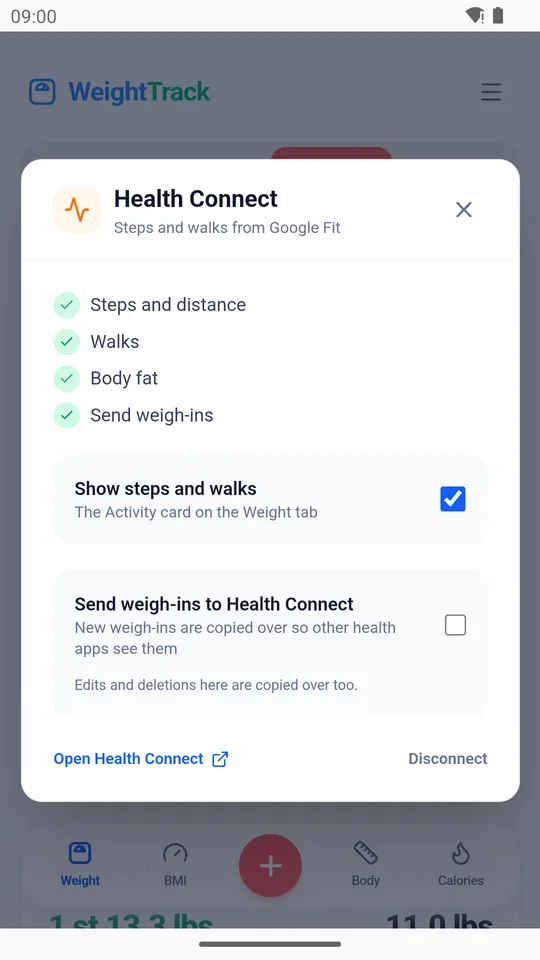
7. BMI
The BMI tab shows your body mass index on a colour-coded gauge, from underweight to obese, and underneath, the weight range for each category at your height, including the healthy range.
BMI is worked out from your latest weight and the height in your profile. It's a rough guide: it doesn't tell muscle from fat, so it can read high for very muscular people.
Back to contents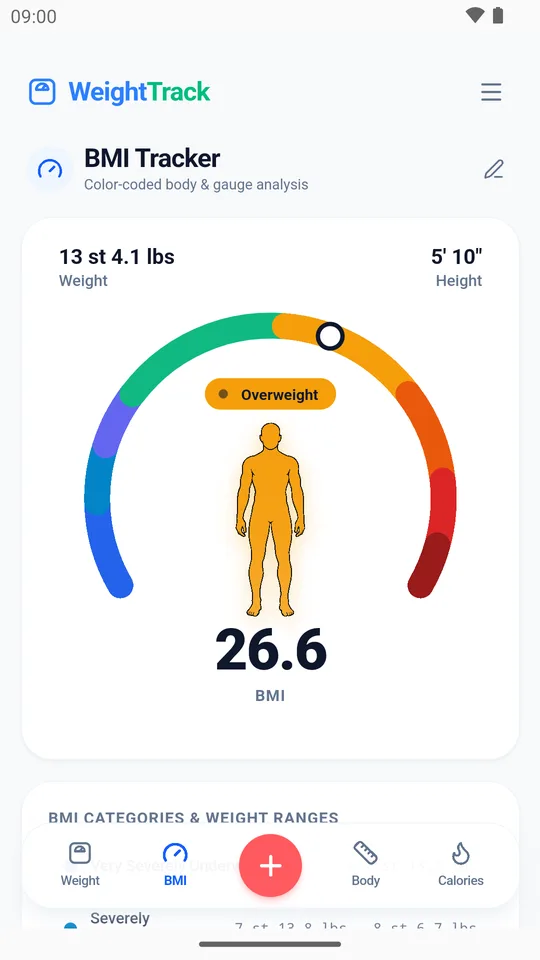
8. Body measurements and photos
The scales don't tell the whole story. The Body tab tracks tape measurements, body fat and progress photos.
Measurements
- Tap Log and enter any of neck, chest, arm, waist, hips, thigh and calf. You don't need all of them.
- Your latest measurements appear on a body map, with the change since last time.
- Tap a measurement to see a chart of how it has changed.
How to measure
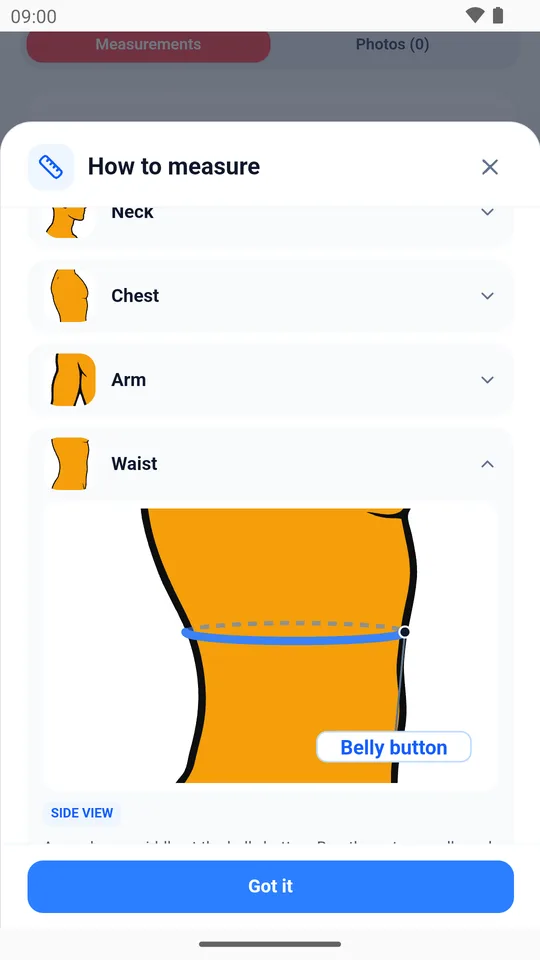
Tap How to measure for tips, and a picture of exactly where the tape goes for each measurement.
Body fat
If you log your neck and waist (and hips, for women), WeightTrack estimates your body fat using the US Navy method. If a smart scale sends body fat to Health Connect, its readings are shown instead.
Progress photos
Add front, side and back photos, then use Before & After to put two side by side. Photos stay on your phone.
Back to contents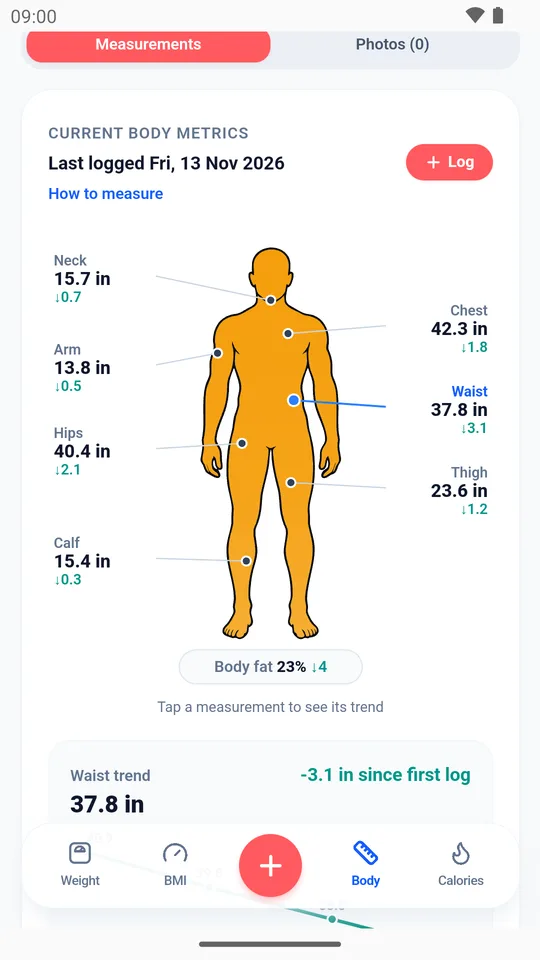
9. Calories
The Calories tab works out a daily calorie target from your weight, height, age, gender and how active you are.
- Maintenance is roughly what you burn in a day, so eating this keeps your weight steady.
- Your pace: choose Follow my goal to reach your goal weight by your goal date, or pick a pace yourself, from losing gently to gaining gently.
- How active are you? From a desk job to an athlete or physical job. Choose honestly: most people overestimate.
- Your target is also split into protein, carbohydrate and fat.
The figures are estimates, so use them as a starting point and adjust if your weight isn't moving as expected.
Back to contents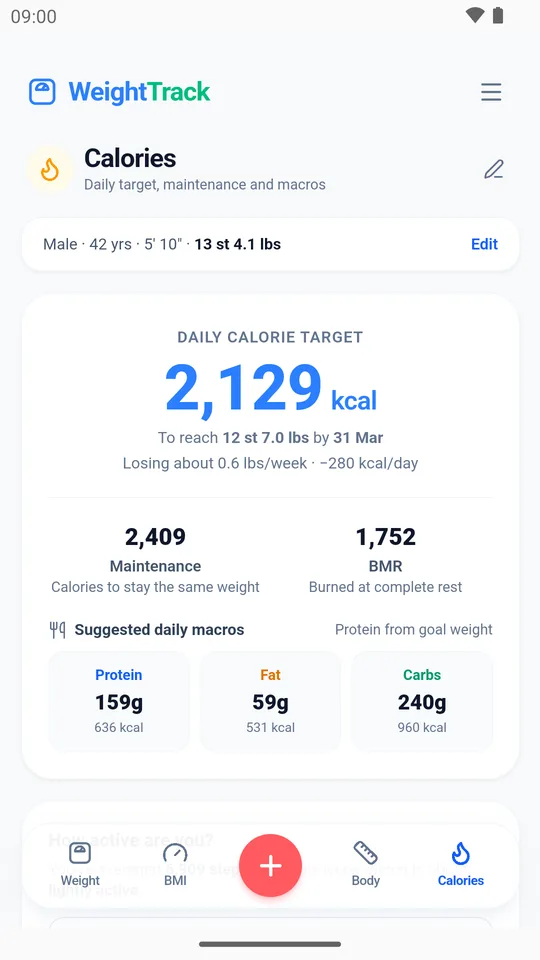
10. Profile, goals and reminders
Open the menu (the three lines, top right) and tap Profile & goals.
- Units: weight in stones & pounds, pounds or kilograms. Change it at any time and all your weigh-ins are shown in the new unit.
- You: gender, height and date of birth.
- Goal: start weight, journey start date, goal weight and goal date.
- Weekly weigh-in reminder: a notification on the day and time you choose. It's skipped in weeks you've already weighed in, and can remind you again the next day if you miss it.
- Weekly summary: on the evening of a weigh-in, a notification with how your week went.
Tap Save when you're done.
Back to contents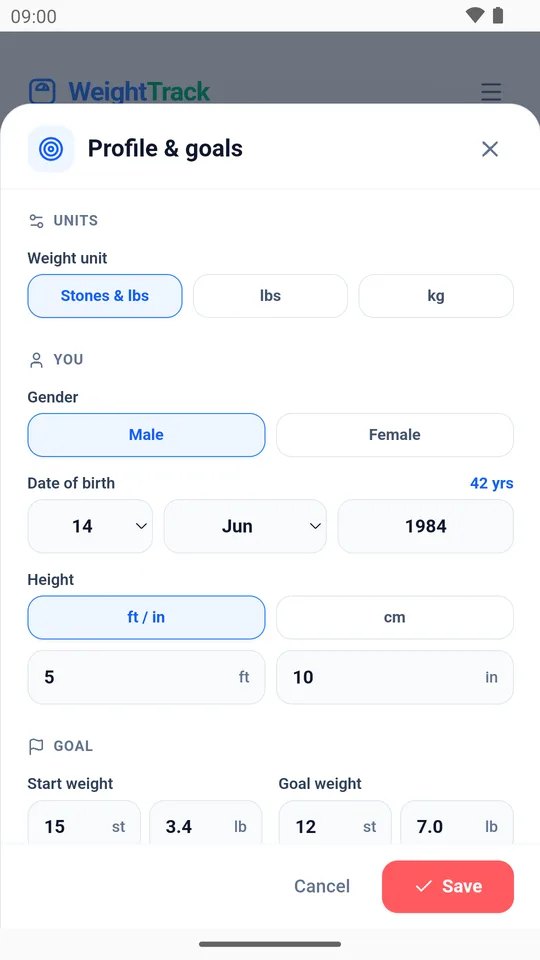
11. Monthly report
Open the menu and tap Monthly report for a summary of any month: how much you lost, your lowest weight, progress towards your goal, steps, walks and body fat.
Use the arrows to move between months, and tap Share report to send it as a picture, or save it to your phone or Google Drive.
Back to contents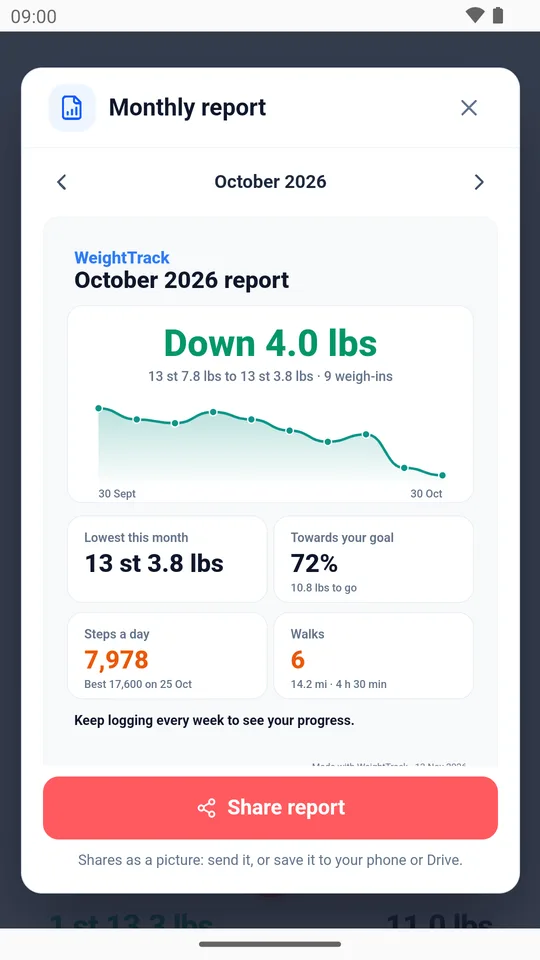
12. Home screen widgets
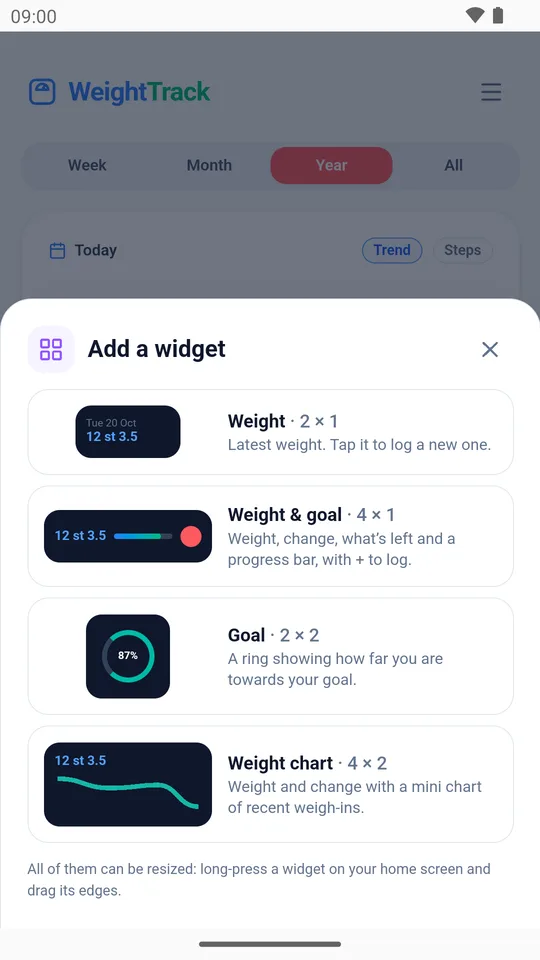
See your progress without opening the app. There are four widgets:
- Weight: your latest weight. Tap it to log a new one.
- Weight & goal: weight, change, what's left and a progress bar, with + to log.
- Goal: a ring showing how far you are towards your goal.
- Weight chart: weight and change with a mini chart of recent weigh-ins.
To add one, open the menu and tap Add home screen widget, or long-press your home screen, tap Widgets and find WeightTrack. All of them can be resized: long-press a widget and drag its edges.
Back to contents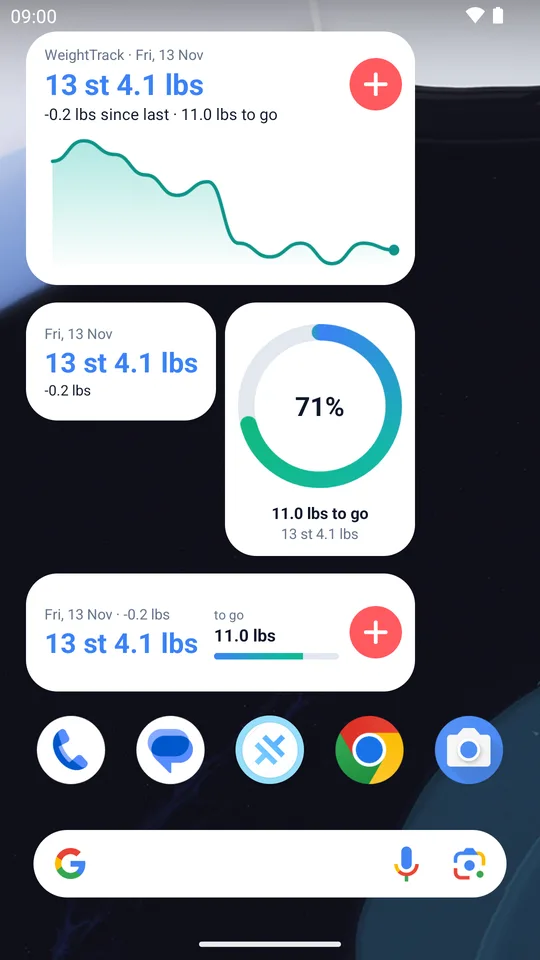
13. Backup and restore
Your data is only on your phone, so it's worth keeping a backup. Open the menu and tap Backup & restore.
- Automatic backup is on from the start. After every change, WeightTrack saves a backup file in Documents/WeightTrack on your phone, which is kept even if you uninstall the app.
- Back up to Google Drive or elsewhere keeps a second copy off your phone, in case it's lost or broken. Choose Google Drive (or any folder) once, and it's kept up to date.
- Export a full backup file, or a spreadsheet (CSV) for Excel, Numbers or Google Sheets.
- Restore from a backup file. Choose whether to merge it with what's already there or replace it.
At the bottom is the option to delete all your data from the app.
Back to contents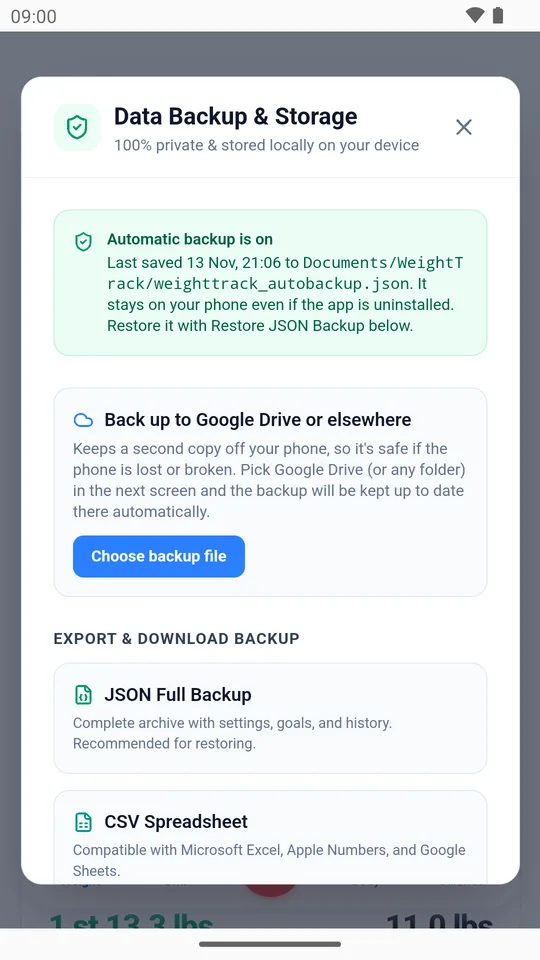
14. Dark mode and more
- Dark mode: open the menu and tap Dark mode (or Light mode to switch back).
- Sideways: turn your phone on its side and the Weight tab shows the chart on the left, with everything else on the right.
- Privacy: there's no account and nothing is sent to us. Read the privacy policy.
Still stuck? See the FAQs or send us a message.
Back to contents