 TermTable
On this page
Quick start
TermTable puts your school or college timetable on your phone, keeps track of Week A and Week B, and reminds you about homework.
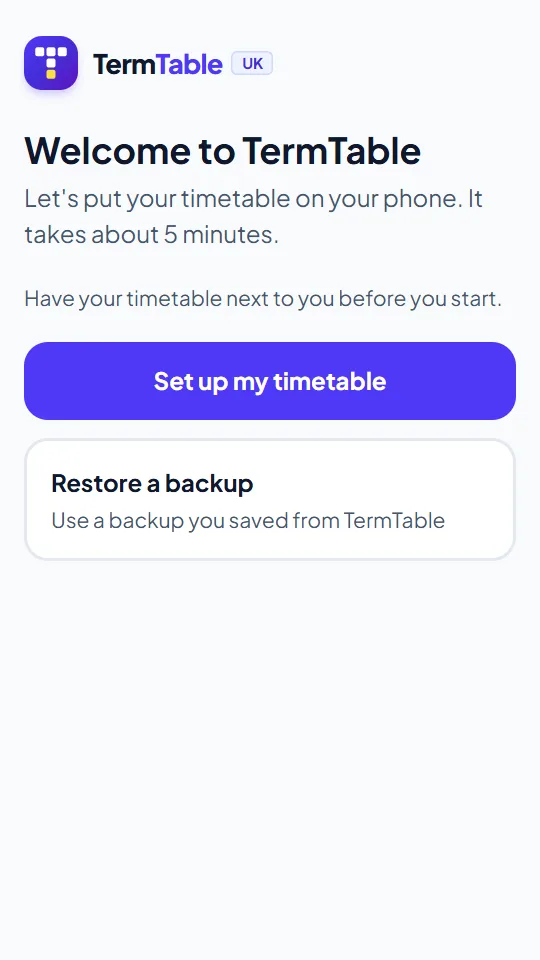
- Open TermTable and tap Set up my timetable. Have your paper timetable next to you.
- Answer the questions: school or college, one week or two, and what your day looks like.
- Tick your subjects, add rooms and teachers, then fill in each day.
- Tap See my timetable. That's it. Tap Today any time to see what's on now.
It takes about five minutes. The rest of this guide explains each part in detail.
Setting up
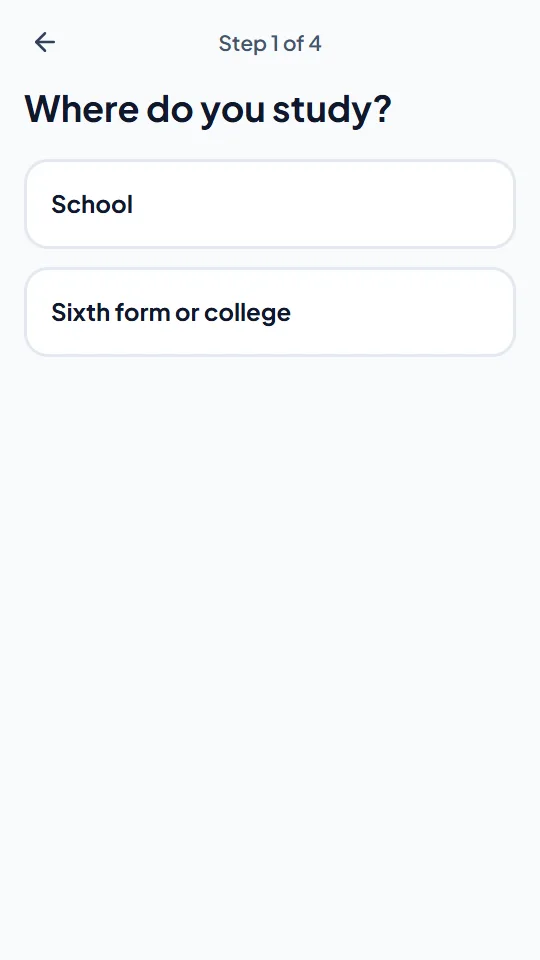
The setup guide asks one thing at a time. Tap the back arrow at the top to go back a step.
Where do you study?
Choose School if your day is split into numbered periods. Choose Sixth form or college if your lessons start at different times on different days.
Are your lessons the same every week?
If your school has a two-week timetable, choose No, I have two different weeks. Then pick whether they're called Week A and B or Week 1 and 2, and which one this week is. TermTable swaps between them every Monday.
What is your day like?
For school, TermTable fills in a normal day of periods, break and lunch. Change the number of periods and the times to match your school.
Subjects, rooms and teachers
Tick each subject you take, then type its room and teacher once. You can leave out any you don't know.
Fill in each day
Go through the week and pick the lesson for each period. If you have two weeks, TermTable copies Week A into Week B, so you only change the lessons that are different.
Already used TermTable on another phone? Choose Restore a backup on the first screen instead. See Backup and restore.
The timetable
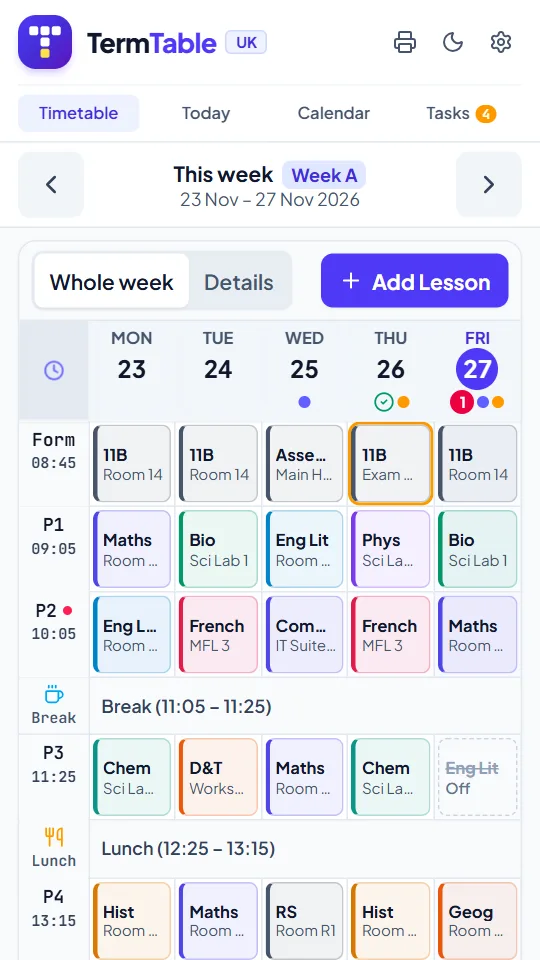
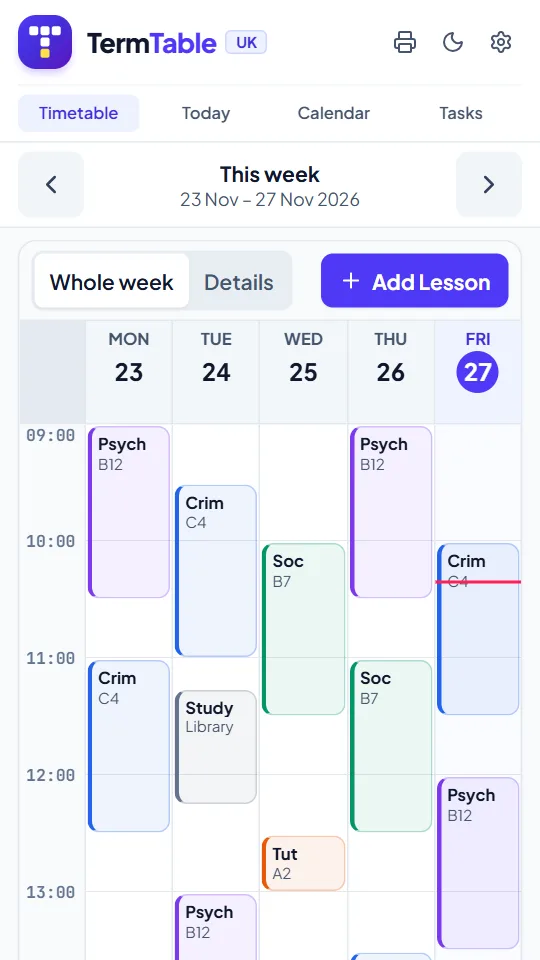
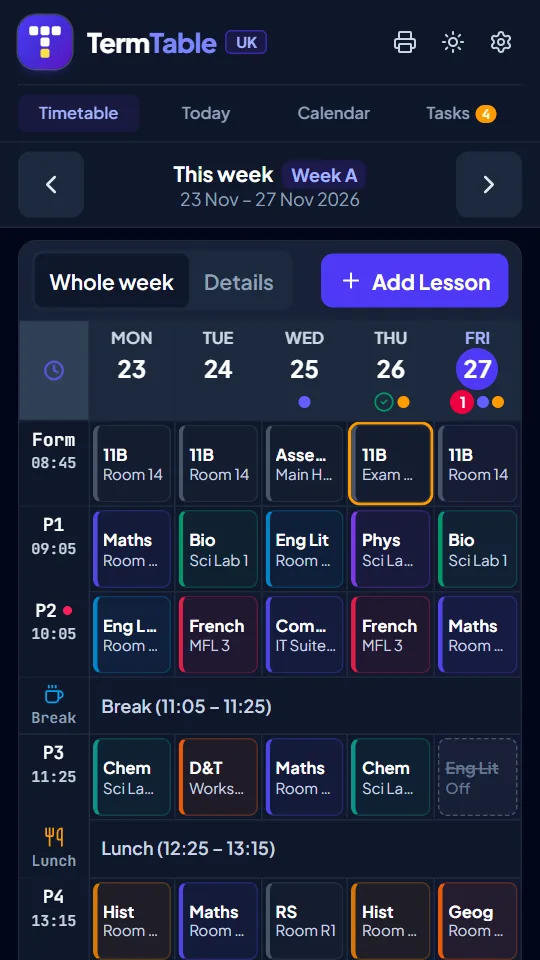
The Timetable tab shows your week. Each lesson shows its short name and room. Today's column is highlighted, and a red dot by the period shows which one is on now.
Whole week or Details

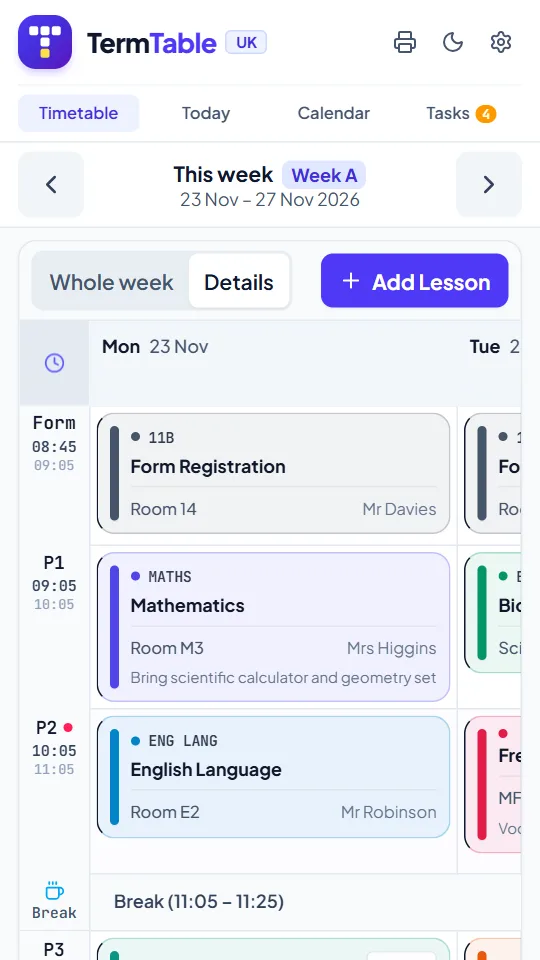
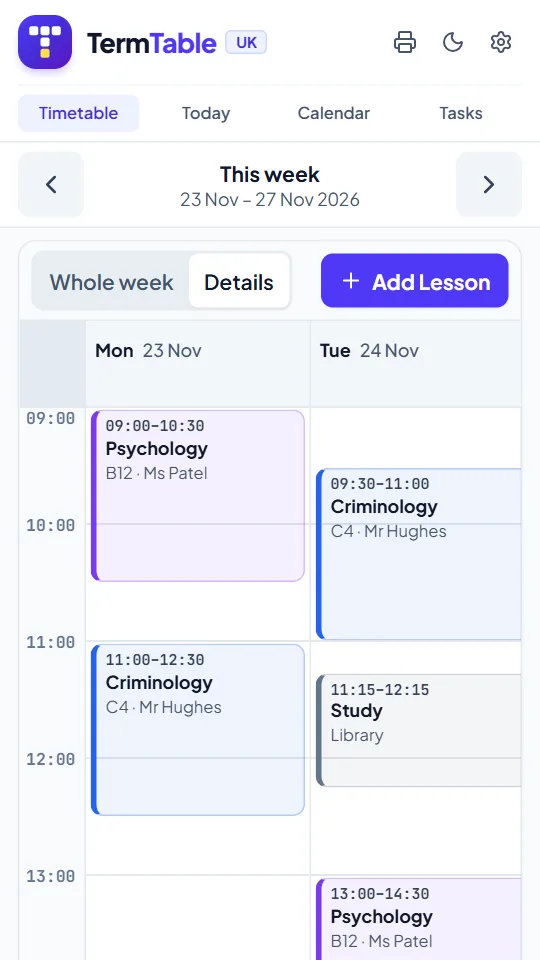
Whole week fits Monday to Friday on your screen, so you can see it all at once. Details shows each lesson's full name, room and teacher, and you scroll sideways to see the rest of the week. TermTable remembers which one you chose.
Tap a lesson
Tapping a lesson shows its details, where you can add homework for it, change it or delete it. See Lessons.
Tap an empty space
Tapping a + adds a lesson in that period. You can also use the Add Lesson button.
Changes for one day
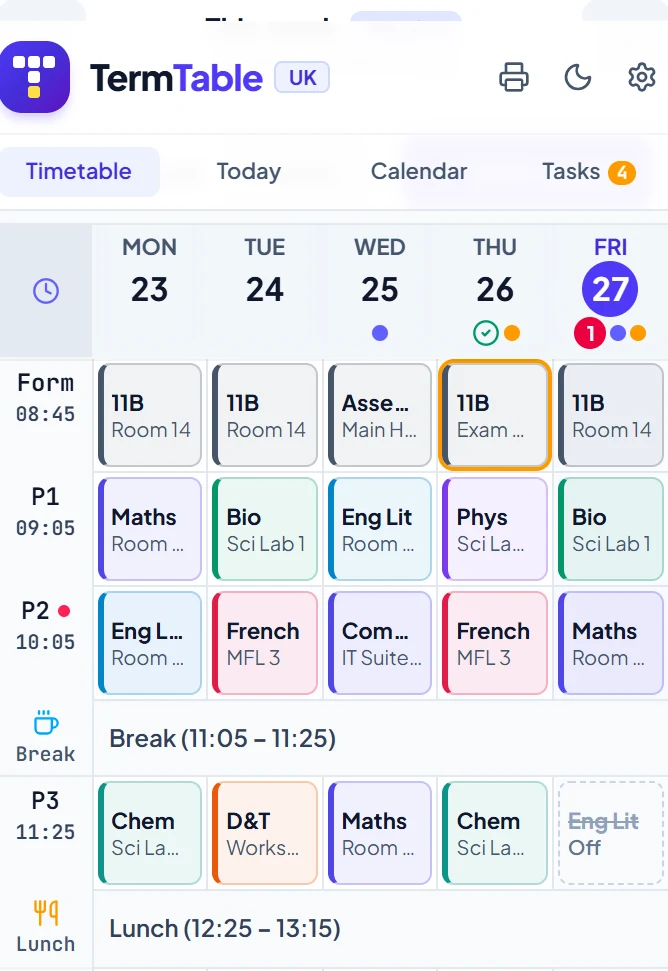
If you've changed a lesson for one day only, like a new room or a cancelled lesson, it shows on the timetable for that week. Tap it to open that day and see the change. See One-day changes.
Weeks and dates

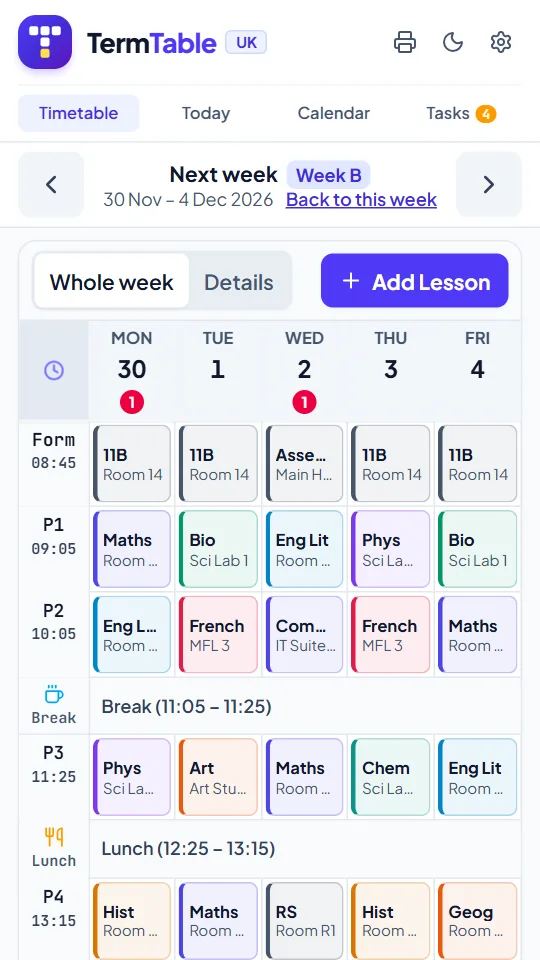
The bar above the timetable shows which week you're looking at, its dates and, if you have two weeks, whether it's Week A or Week B. Tap the arrows to go to the previous or next week. When you're not on this week, tap Back to this week.
Markers on each day
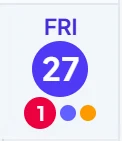
| Marker | What it means |
|---|---|
| Red number | Tasks due that day that aren't done yet |
| Green tick | Everything due that day is done |
| Blue dot | The day has a note |
| Amber dot | A lesson is changed, cancelled or added for that day |
In the Details view the markers are spelt out, like 2 due, Note and 1 change. Tap a day's name to open it on the Today tab.
Week A and Week B
If your school has a two-week timetable, TermTable works out which week it is from the date, and swaps every Monday. The week bar always says which one you're looking at.
Use the arrows to look at next week. You'll see the other week's lessons, with the right dates.
If it's the wrong week
Schools sometimes restart the rota after a holiday. Open Settings and tap Swap the weeks. Your lessons stay as they are; only which week is "this week" changes.
Lessons in one week only
A lesson can be on every week, or only in Week A or Week B. You choose when you add or change the lesson.
Lessons
Lesson details
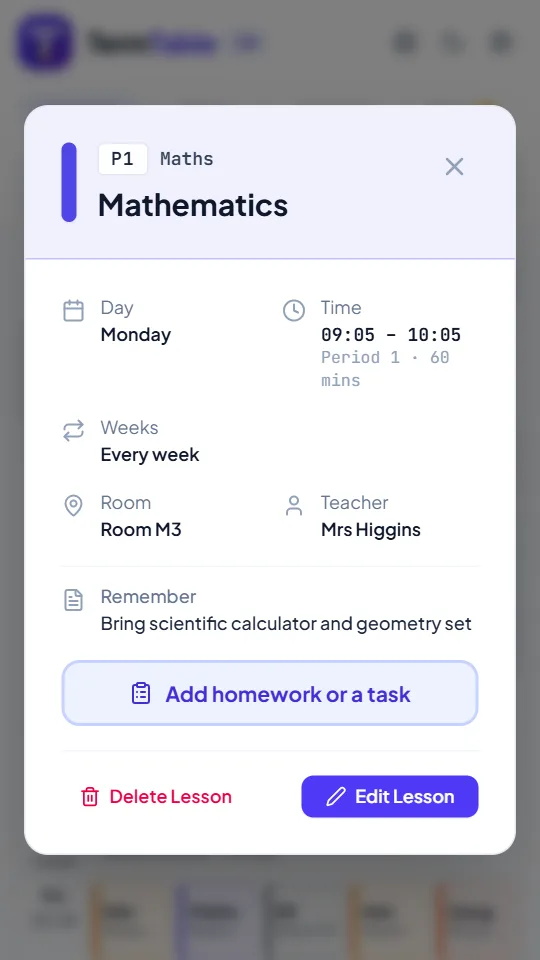
Tap a lesson on the timetable to see its day, time, weeks, room, teacher and anything to remember for it.
- Add homework or a task adds a task for this subject, due the next time the lesson is on.
- Edit Lesson changes it for every week.
- Delete Lesson removes it. TermTable asks you to confirm first.
Only different for one day? Don't edit the lesson. Change it from the Today tab instead, so the rest of the term isn't affected. See One-day changes.
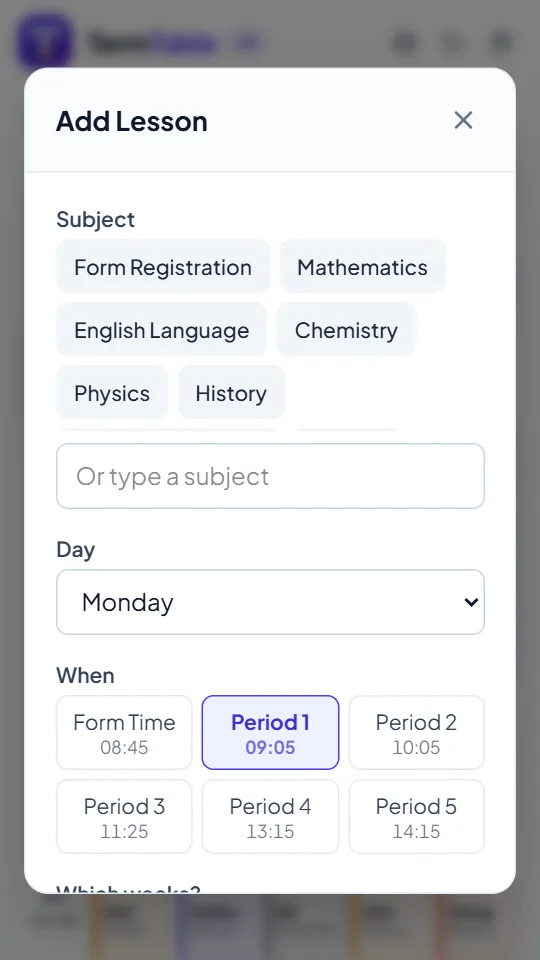
Adding or changing a lesson
Pick the subject from your list, or type a new one. Choose the day and the period, then the room, teacher, colour and which weeks it's on. You can add a note too, like equipment to bring.
If two lessons end up at the same time, a red line at the top of the screen says so. Tap it to see them and fix it.
College times
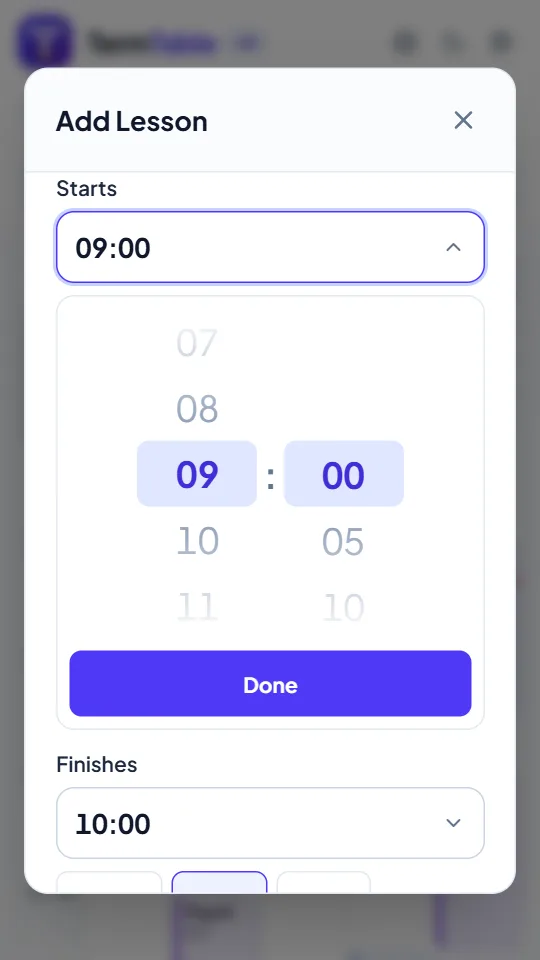
If you chose Sixth form or college, each lesson has its own start and finish time instead of a period. The timetable is drawn to scale, so long lessons look long and free time looks free.
Picking a time
Tap a time to open two scroll wheels, one for hours and one for minutes. Flick each one to the time you want, or tap a number, then tap Done. Times are in 24 hours, so there's no AM or PM to get wrong. The finish time moves with the start time.
Tap an empty space on the timetable to add a lesson starting at that time.
Today
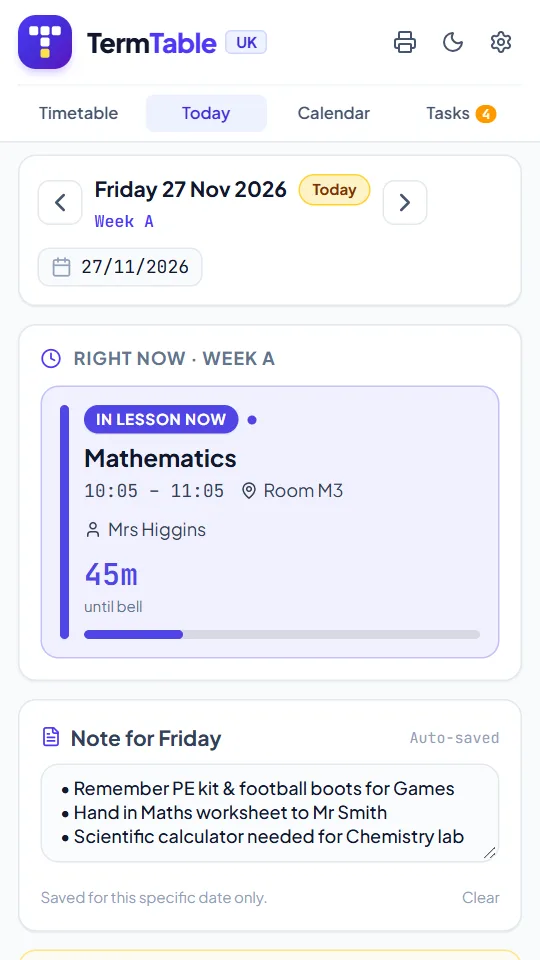
The Today tab is your day at a glance.
- Right now shows the lesson you're in, its room and teacher, and how long until the bell. Between lessons it shows what's next.
- Note for the day is for kit, reminders or anything else. It saves on its own when you tap away, and belongs to that date only.
- Due today lists tasks due that day. Tick one off when it's done.
- Below that are the day's lessons in order.
Use the arrows by the date to look at other days, or Return to Today to come back.
One-day changes
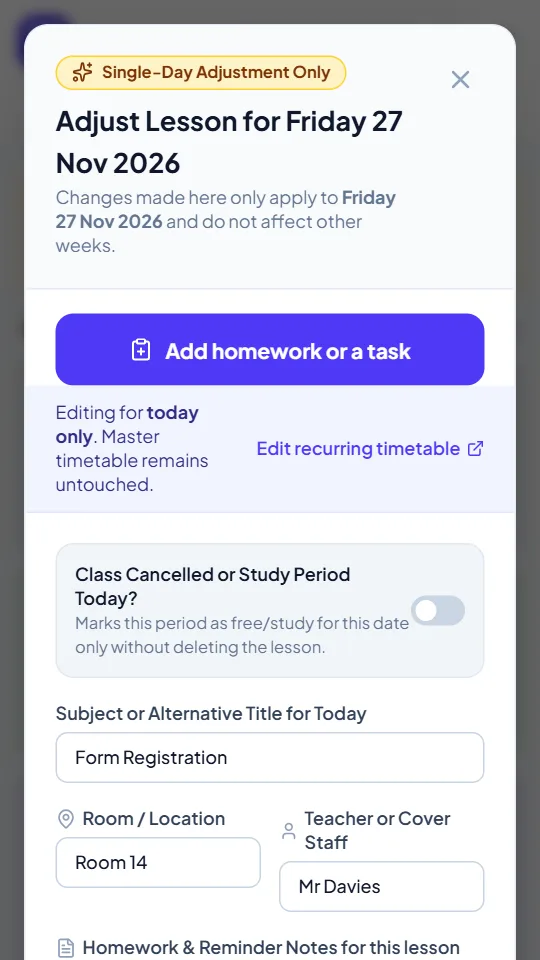
Room change? Cover teacher? Lesson cancelled for a trip? On the Today tab, go to that day and tap the lesson. Anything you change here applies to that date only, and your normal timetable stays the same.
- Turn on cancelled or study period to mark it as off that day.
- Change the subject, room or teacher for that day.
- Add a note just for that lesson on that day, like "test in period 2".
- Use Add for Today to add an extra lesson on one day, like a revision session.
Changed lessons show with an amber outline on the timetable, and the day gets an amber marker.
Homework and tasks
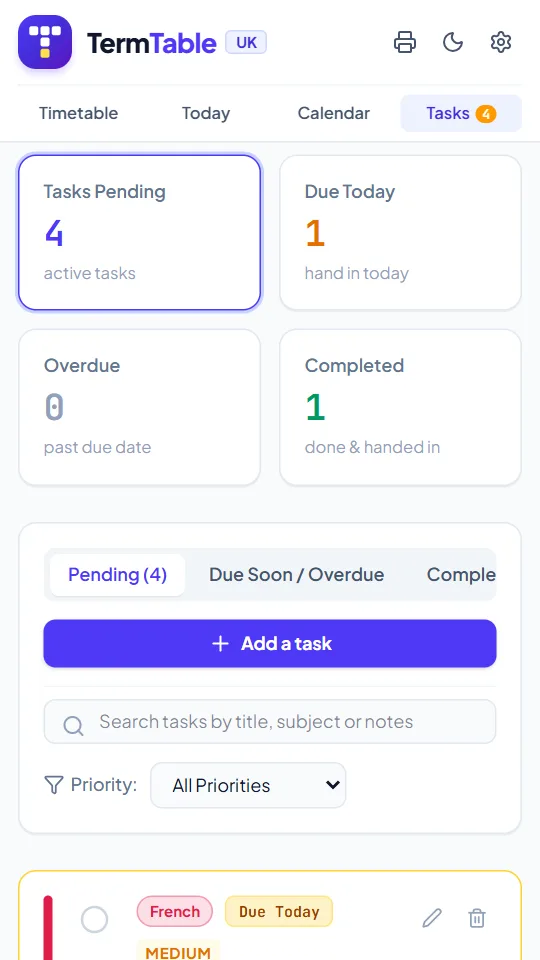
The Tasks tab keeps track of homework, revision and anything else with a deadline. The number on the tab is how many are still to do.
- The boxes at the top show what's pending, due today, overdue and done. Tap one to see just those.
- Tap the circle next to a task to mark it done.
- Search tasks, or filter them by how important they are.
Adding a task
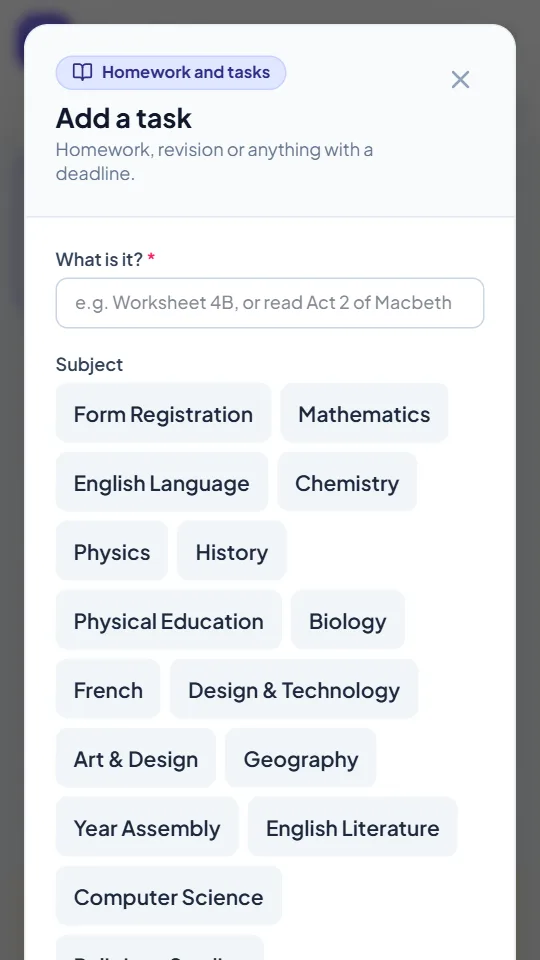
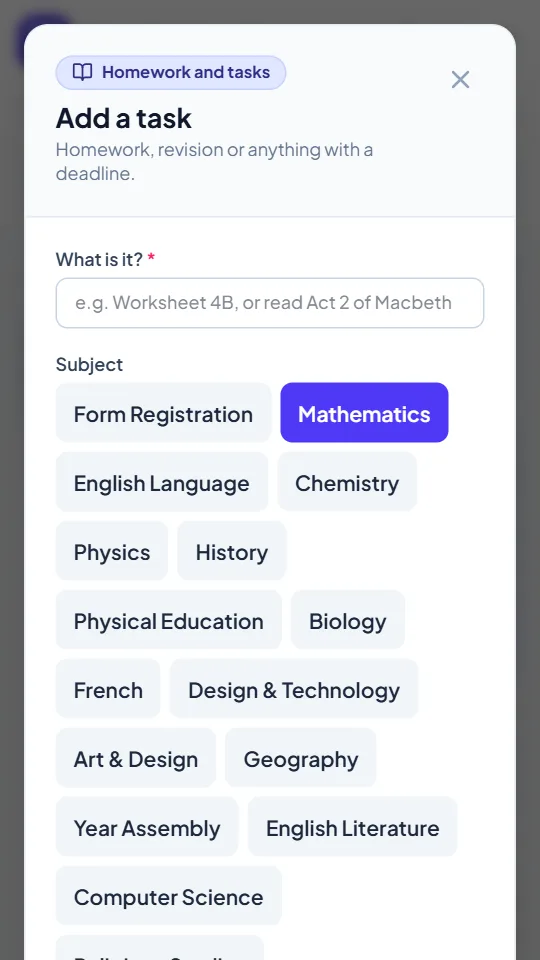
Tap Add a task. Say what it is, pick the subject, how important it is and when it's due. You can add notes, like which questions to do.
The quickest way is from the lesson itself: tap the lesson on the timetable, then Add homework or a task. The subject is filled in, and it's due the next time you have that lesson.
Calendar
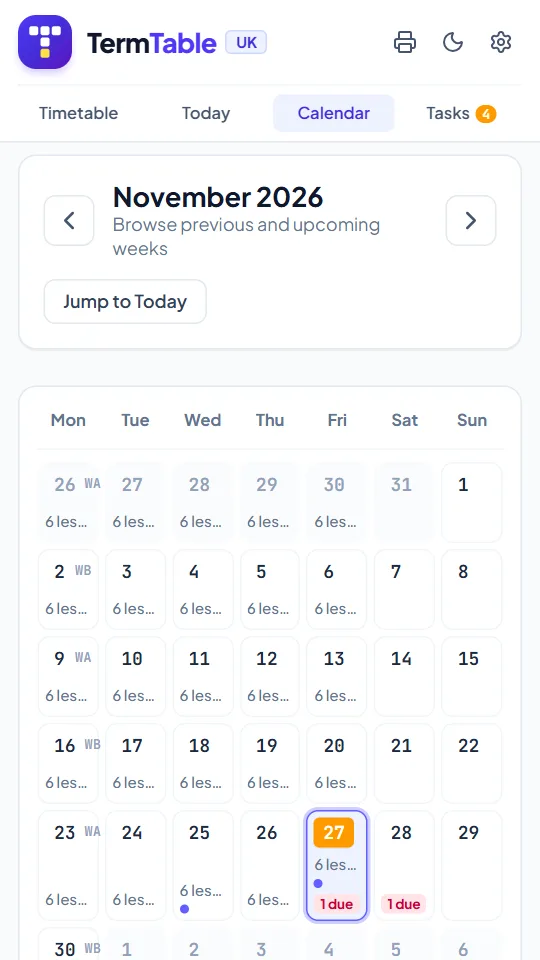
The Calendar tab shows a month at a time, with how many lessons are on each day, tasks due and days with notes. If you have two weeks, each Monday says whether it's Week A or Week B.
Tap a day to see its lessons, note and tasks underneath. From there you can open it on the Today tab. Use the arrows to change month, or Jump to Today to come back.
Reminders
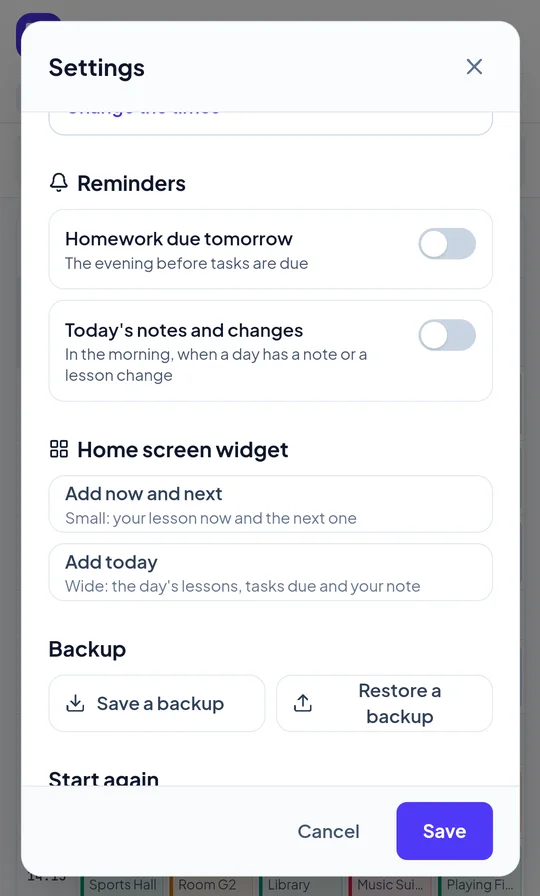
TermTable can remind you so you don't have to open it. Reminders are off to start with. Turn them on in Settings, under Reminders.
| Reminder | When |
|---|---|
| Homework due tomorrow | The evening before tasks are due. It lists what's due. 18:00 unless you change it. |
| Today's notes and changes | In the morning, on days with a note or a lesson change. 07:30 unless you change it. |
When you turn one on, your phone asks whether TermTable can send notifications. Tap Allow. Tapping a reminder opens that day.
Not getting reminders? Check notifications are allowed for TermTable in your phone's Settings, under Apps. Some phones also need battery saving turned off for the app.
Home screen widgets
Widgets show your timetable on your phone's home screen, without opening the app. Tap one to go straight to Today.
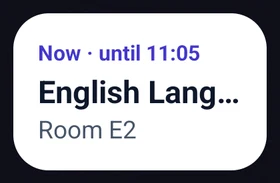
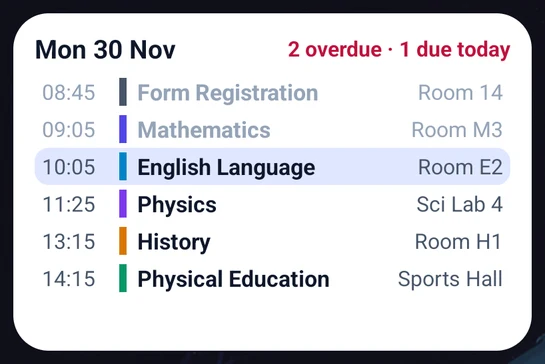
Now and next
The lesson you're in now, its room and when it ends. Between lessons, it shows the next one. After school it shows your first lesson on the next school day. Make it taller to see the lesson after, and tasks due.
Today
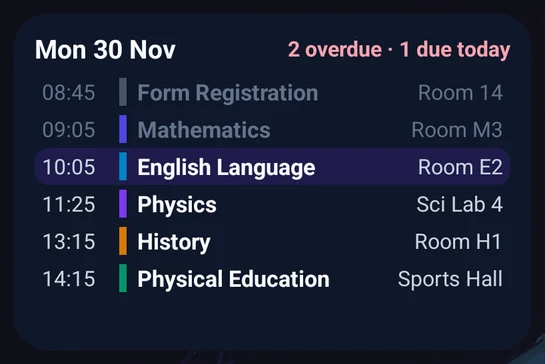
The day's lessons with times and rooms. The one on now is highlighted, finished lessons are greyed out, and changes show in amber. Tasks due are at the top and the day's note at the bottom. After your last lesson, it moves on to the next school day.
Adding a widget
- Open Settings in TermTable and find Home screen widget.
- Tap Add now and next or Add today.
- Your phone asks if you want to add it. Tap Add to home screen.
You can also touch and hold an empty space on your home screen, tap Widgets, and find TermTable.
Changing the size
Touch and hold the widget, let go, then drag the dots on its edges. Both widgets can be as small as one row. They show as much as fits.

Good to know: after a bell, a widget can take a few minutes to move on to the next lesson. The times it shows are always right. If you don't open TermTable for three weeks, a widget asks you to open it so it can bring itself up to date.
Settings
Tap the cog at the top right.
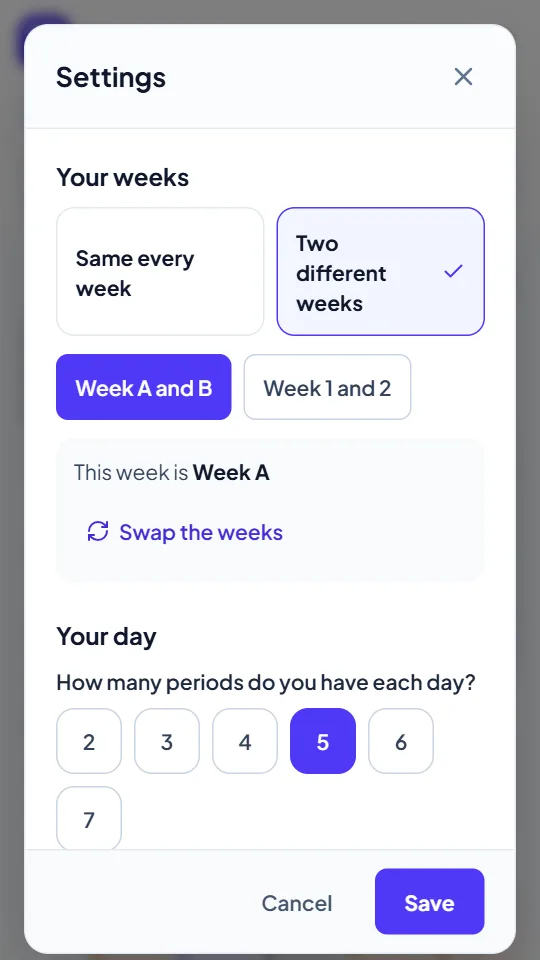
Your weeks
Choose Same every week or Two different weeks, what they're called, and Swap the weeks if TermTable has the wrong one as this week.
Your day
Change the number of periods, their times, and when break and lunch are. Lessons move with their periods. If you take a period away, TermTable warns you before any lessons in it are deleted.
Reminders and widgets
See Reminders and Home screen widgets. These save straight away.
Start again
Set up my timetable again runs the setup guide again. Delete everything removes all your lessons, tasks and notes. Both ask you to confirm first.
Tap Save to keep changes to your weeks and day, or Cancel to leave them as they were.
Backup and restore
Your timetable is only on your phone, so it's worth saving a backup, especially before you change phones.
Save a backup
In Settings, tap Save a backup. Your phone's share menu opens. Save the file to Google Drive, email it to yourself, or put it in your Files app. It contains your lessons, tasks, notes, changes and settings.
Restore a backup
In Settings, tap Restore a backup and choose the file. On a new phone, you can choose Restore a backup on the very first screen instead of setting up.
Restoring replaces what's there. Everything currently in TermTable is replaced by the backup.
Printing
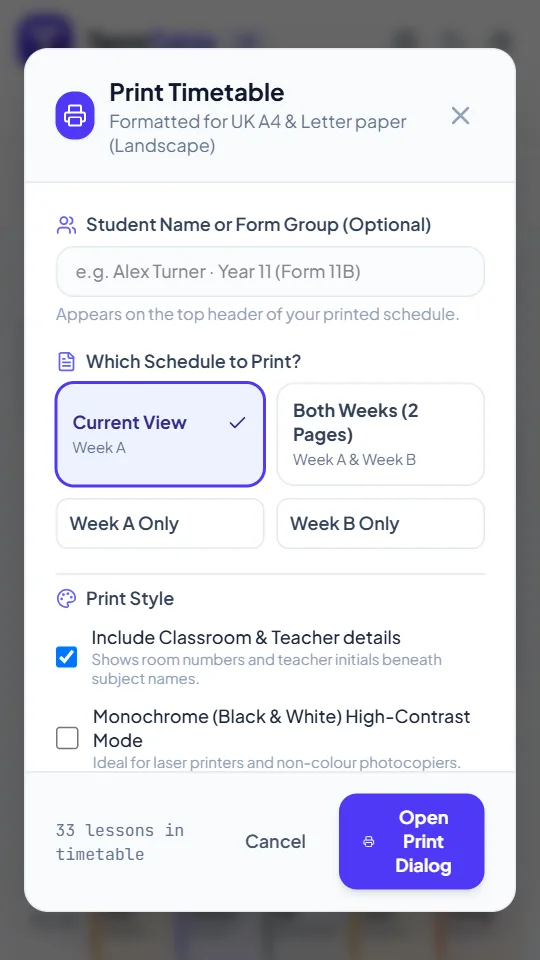
Tap the printer at the top to print your timetable on A4, or save it as a PDF.
- Add your name or form group to the top of the page.
- With two weeks, print this week, both weeks (two pages), or just Week A or Week B.
- Choose whether to include rooms and teachers.
- Turn on black and white for a printer without colour.
Tap Open Print Dialog, then choose your printer, or Save as PDF.
Light and dark
Tap the moon or sun at the top to switch between light and dark. TermTable remembers your choice. Every screen works in both.
The widgets follow your phone's own light or dark setting.
Tips
- Add homework from the lesson. Tap the lesson, then Add homework or a task. The subject and due date are filled in for you.
- Use the daily note for kit. PE kit, a calculator, money for a trip. Turn on the morning reminder and you'll see it before you leave.
- Change one day, not the lesson. For a room change or cover, use the Today tab so next week is still right.
- Put the Today widget on your home screen. You'll see where you need to be without opening the app.
- Save a backup each term. It takes seconds and makes a new phone painless.
Stuck? Look in the FAQ for quick answers, or send us a message.