 rebar
The Rebar user guide
What every part of Rebar does and how to use it, from your first set to backing up your history. All the screenshots use made-up example data. Written for Rebar 1.4. Looking for a quick answer? Try the FAQ.
1Getting started
Rebar is a private workout logbook. There is no account to create: install it, open it and start logging. Everything you enter stays on your phone.
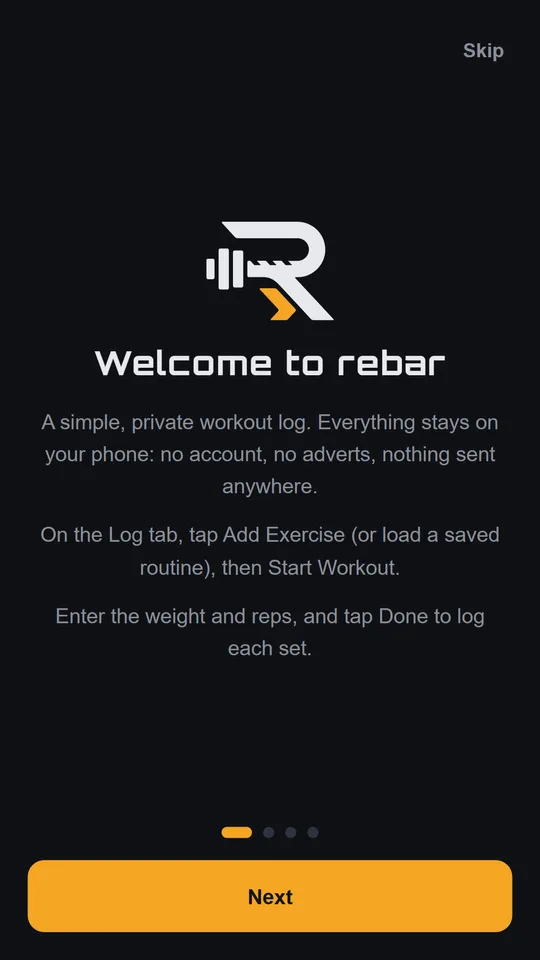
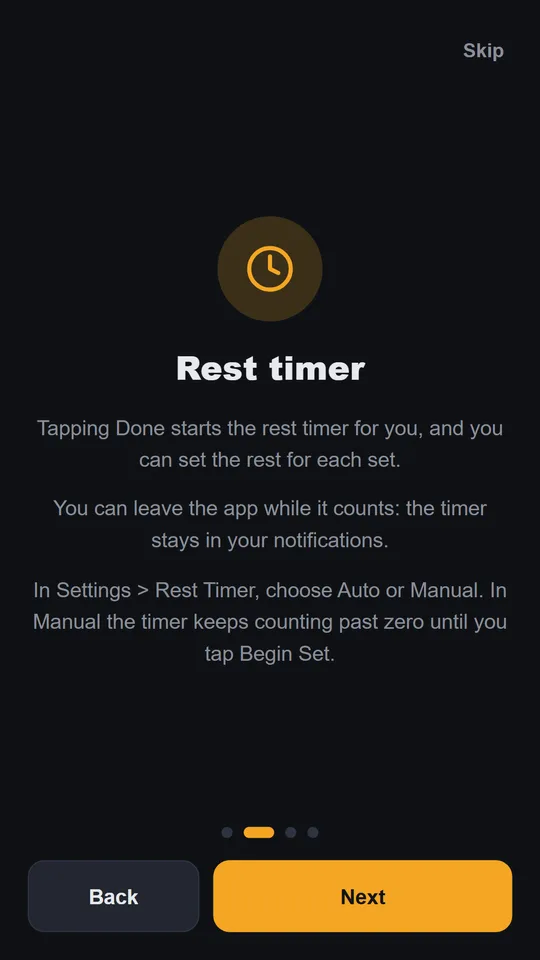
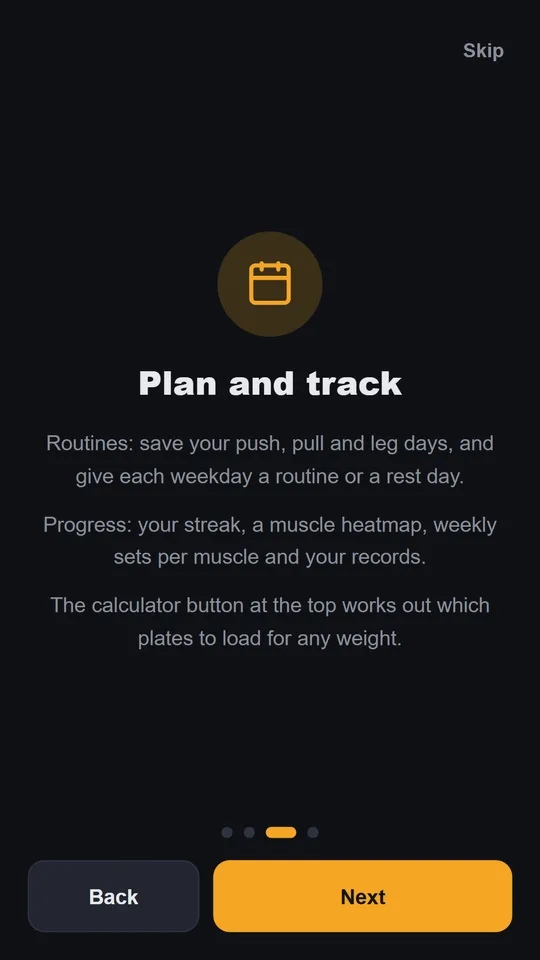
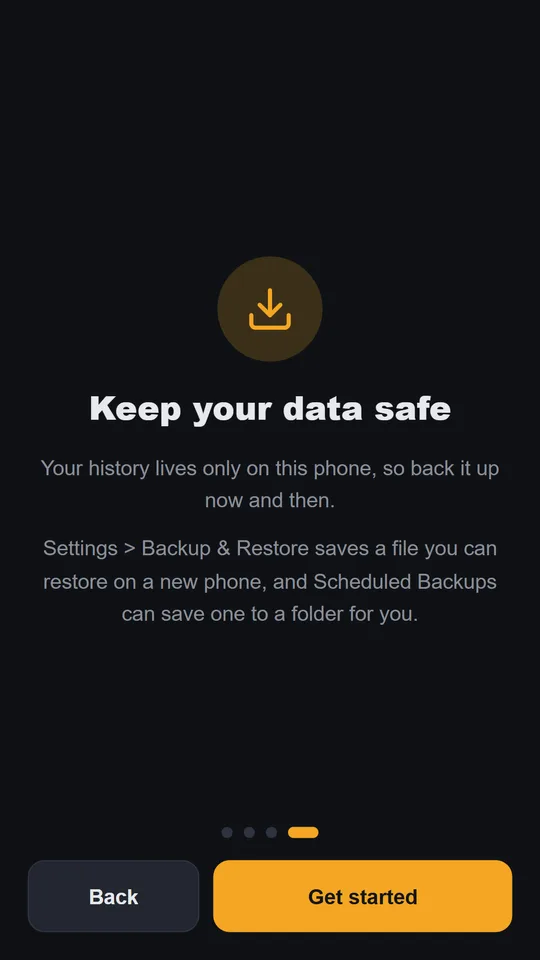
The first time you open Rebar with nothing logged, a short intro runs through the basics. Tap Next to step through it or Skip at any point. You can replay it later from Settings then Help & feedback.
The three tabs
- Log: today. Plan and run a workout, mark a rest day, and browse your history.
- Routines: your saved workouts and your weekly schedule.
- Progress: charts and reports built from everything you log.
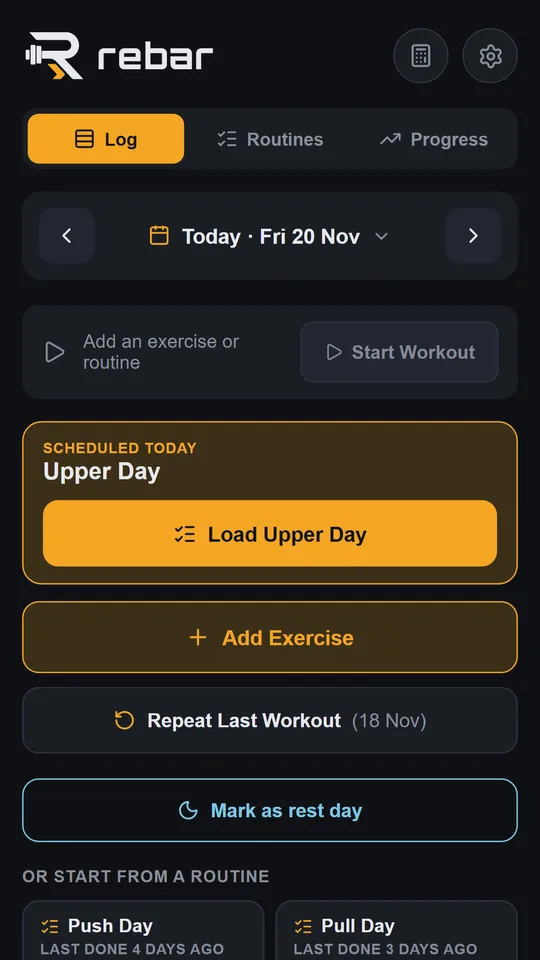
At the top right are two buttons that are always there outside a workout: the calculator opens the plate calculator, and the cog opens Settings.
2The Log tab
Your home screen. It shows the day you are looking at, what is scheduled, and your history.
Choosing the day
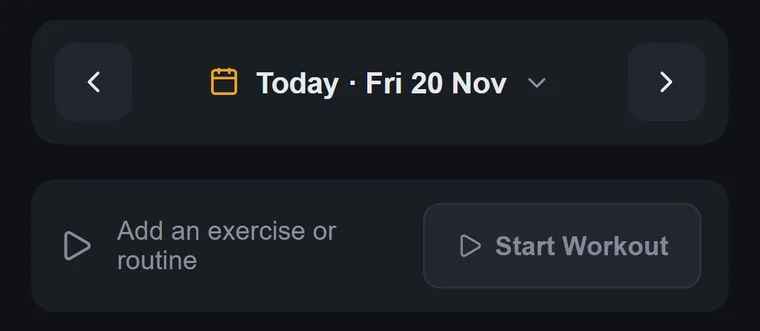
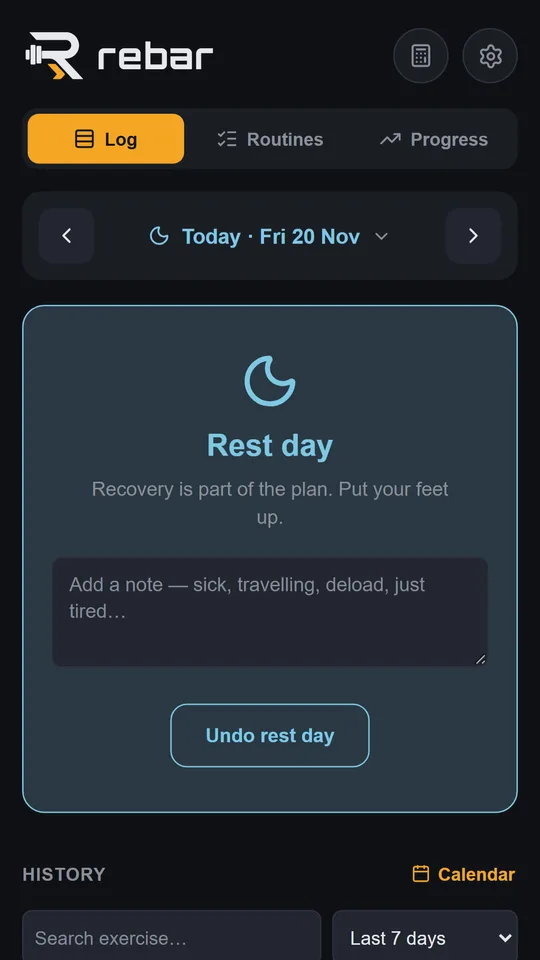
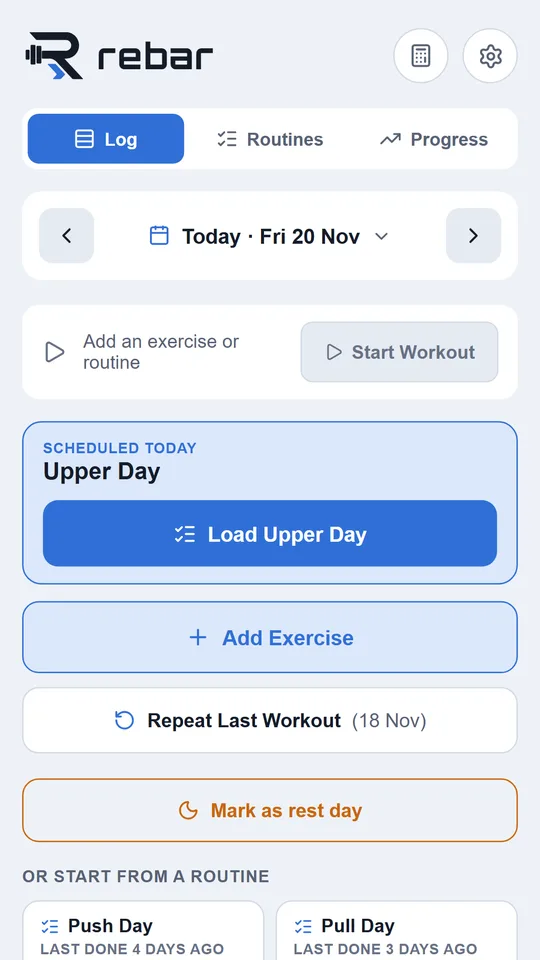
The bar at the top shows the day. Use the arrows to move one day at a time, or tap the date to open the calendar. The button inside the card, Start Workout, is greyed out until the day has at least one exercise.
The calendar
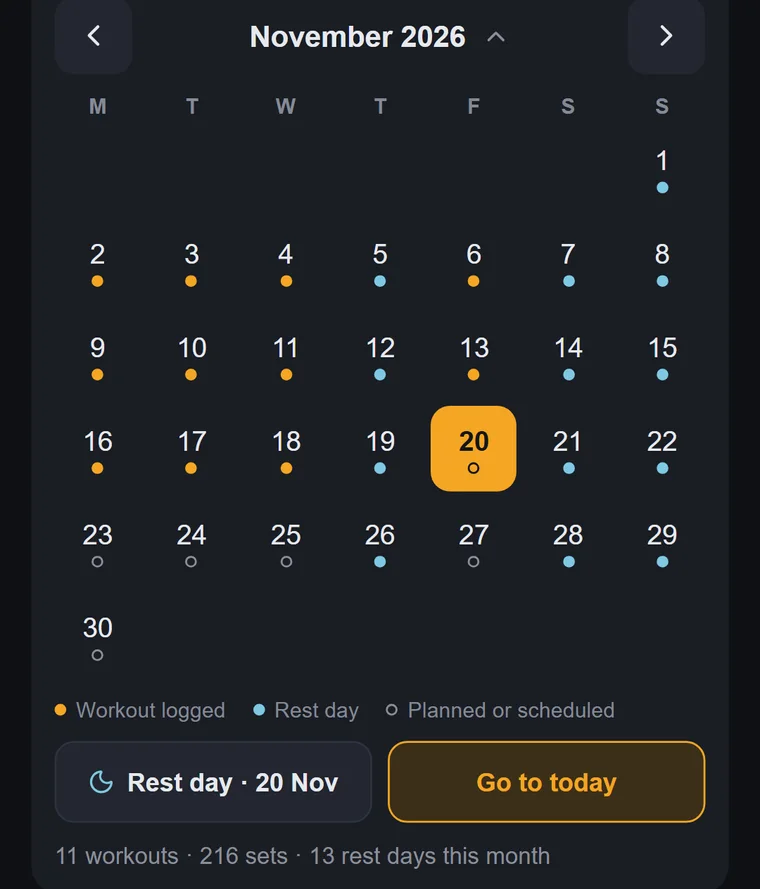
Each day has a dot: amber for a logged workout, blue for a rest day, and a hollow dot for something planned or scheduled. Tap a day to jump to it. Go to today brings you back, and the line underneath totals the month: workouts, sets and rest days.
Scheduled today
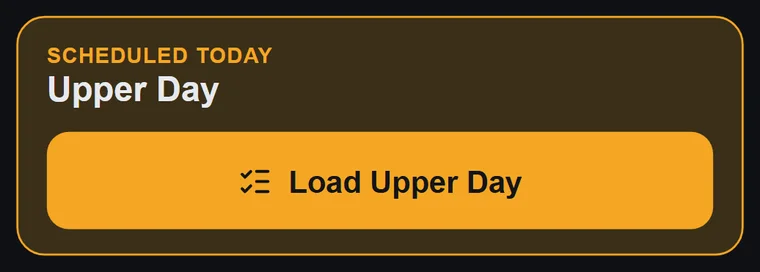
If your weekly plan has a routine for the day you are viewing, it appears at the top with a one-tap button to load it. Set up the plan in Routines.
Quick actions
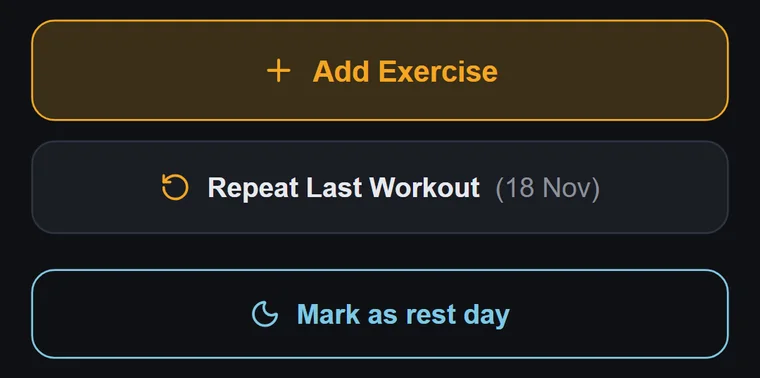
- Add Exercise starts a plan from scratch. See Planning a workout.
- Repeat Last Workout loads your most recent workout (it shows the date) with the same exercises, weights, reps and rests.
- Mark as rest day records that you deliberately rested. You can add a note (sick, travelling, deload) and undo it with Undo rest day. Rest days count in your calendar and consistency, and scheduled ones are filled in for you.
Start from a routine
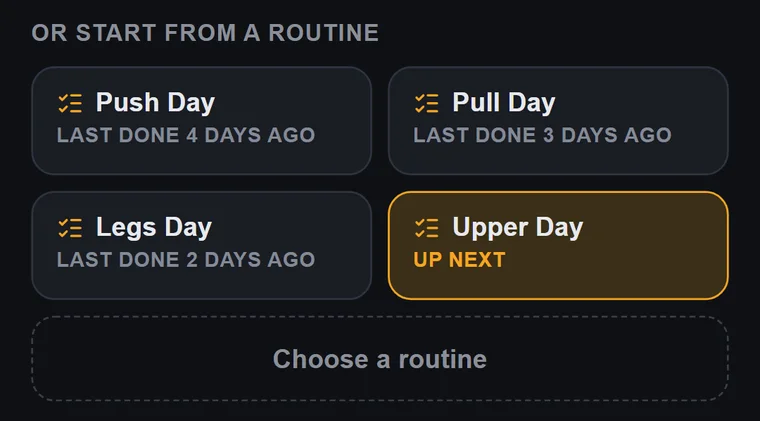
Your saved routines appear as tiles, each showing when you last did it. The routine you are due next is marked UP NEXT. Tap a tile to load it into the day, or Choose a routine for the full list.
History
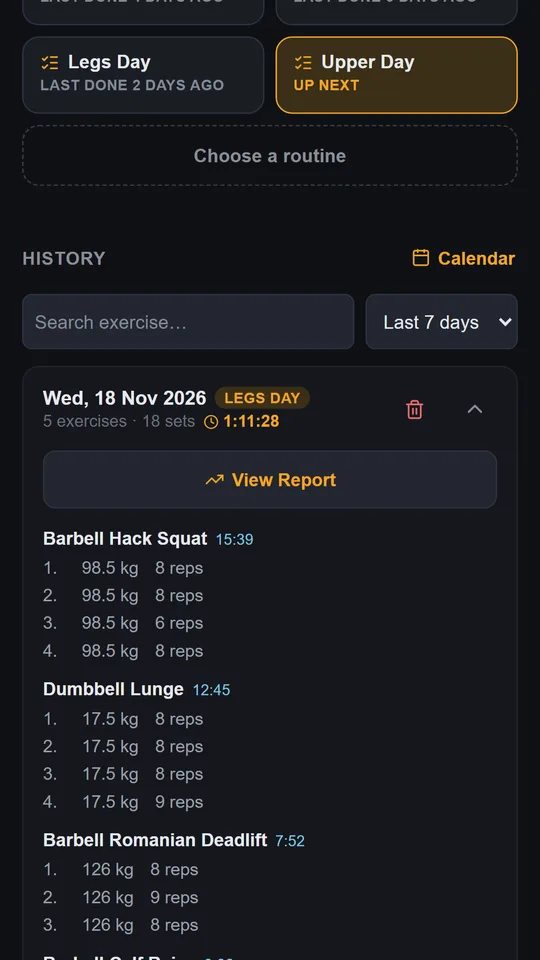
Below, every finished workout is listed, newest first, with its routine, number of exercises and sets, and how long it took. Use the search box to find days that include a particular exercise, and the menu on the right to change the range: the last 7, 30 or 90 days, the last year, or all time.
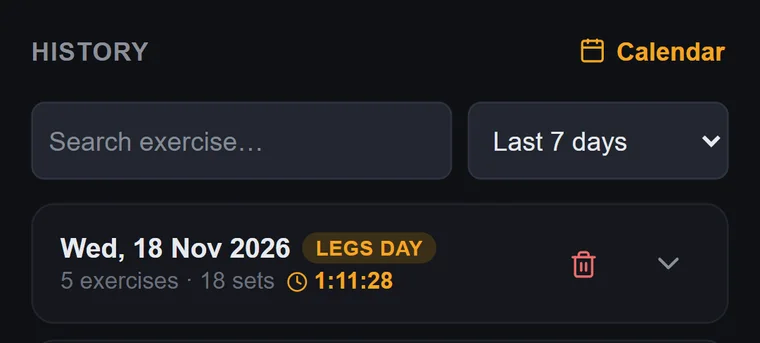
- Tap a workout (or the arrow on its right) to expand it. You see every exercise with its sets, and a View Report button that opens the full report.
- The bin icon deletes the workout. It asks you to tap again to confirm.
3Planning a workout
Before you press Start, build the day: choose exercises, set the weights, reps and rests. Or load a routine and just adjust it.
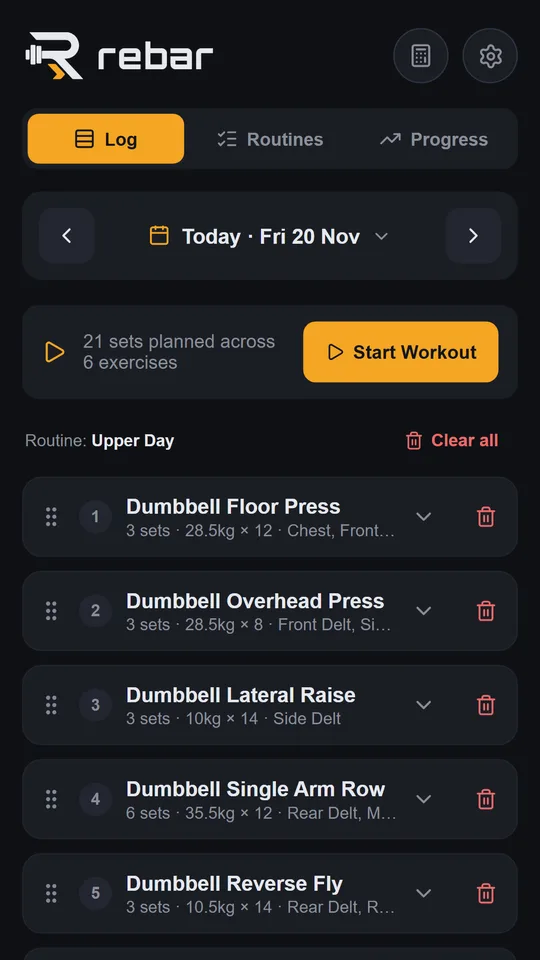
Tap Add Exercise, or load a routine. The exercises appear in a Planned workout list under the Start button, which tells you how many sets are planned. Drag the grip on the left to reorder them, use the bin to remove one, or Clear all to start again.
Loaded exercises start collapsed. Tap one to open it and edit the details.
An exercise, in detail
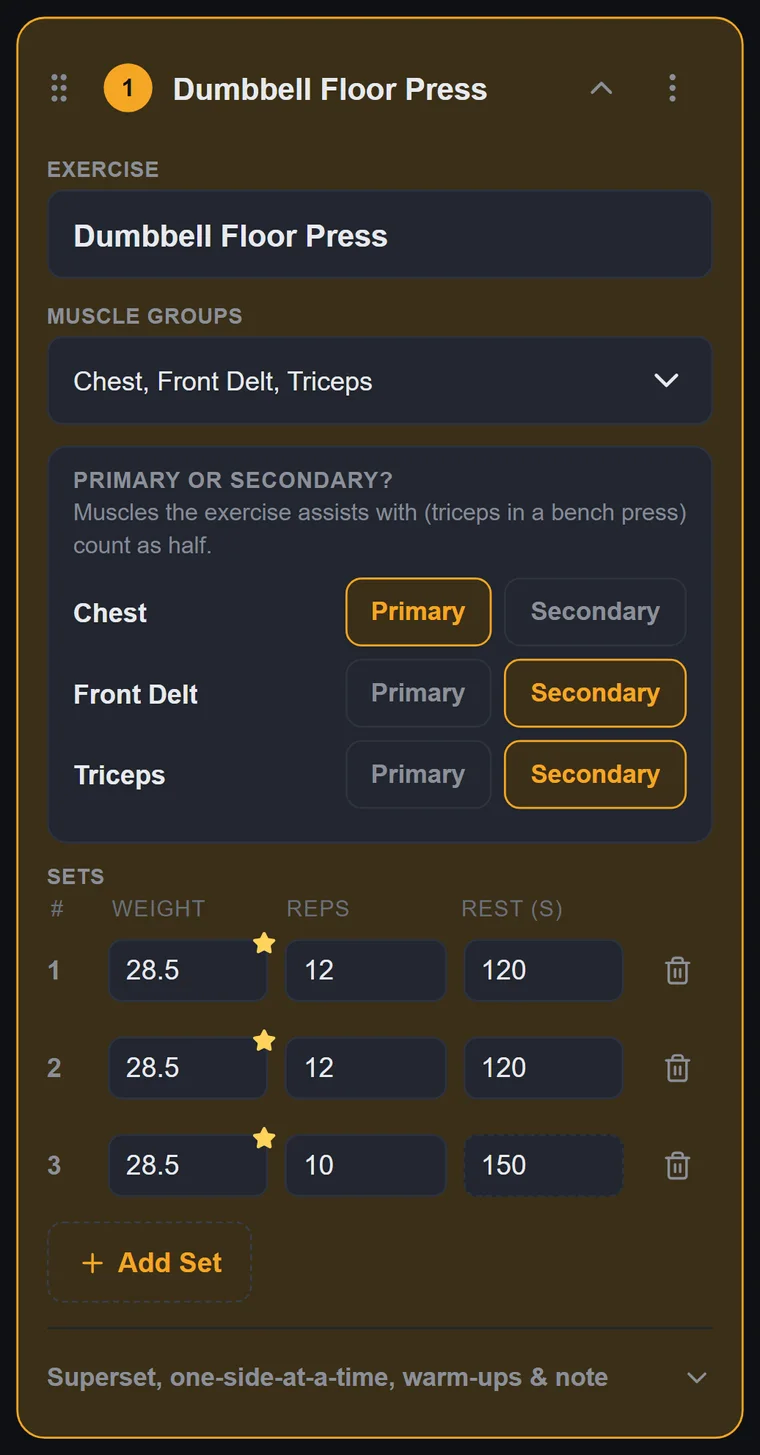
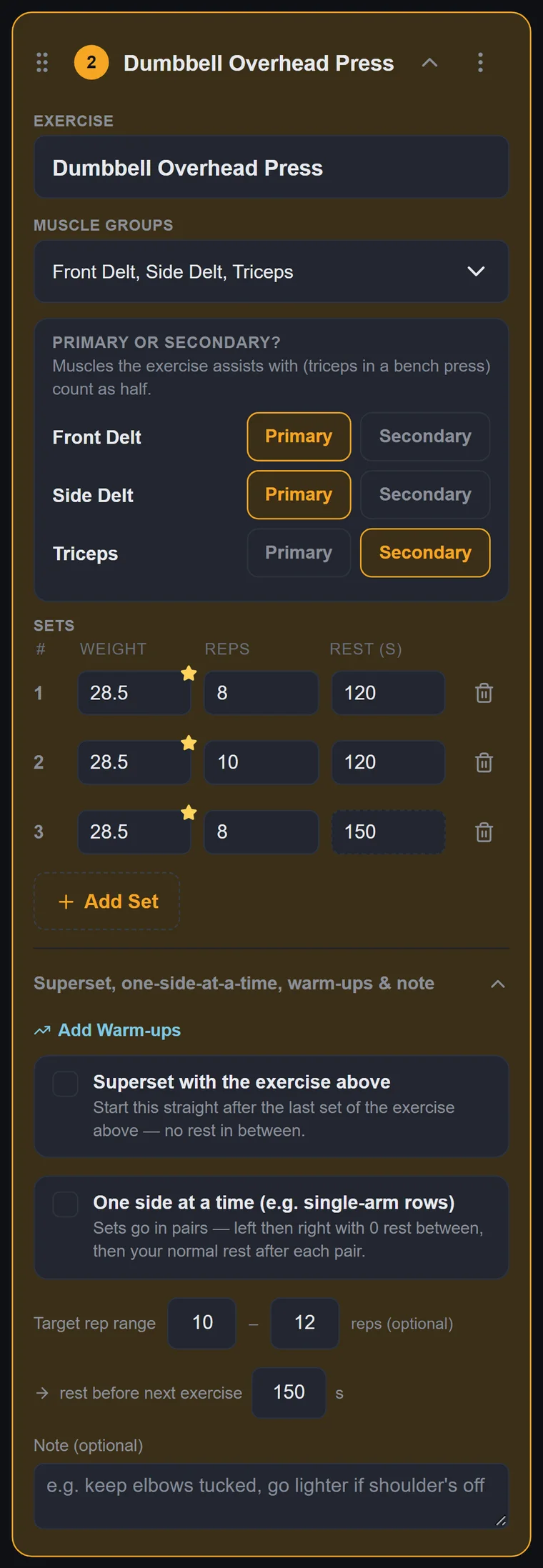
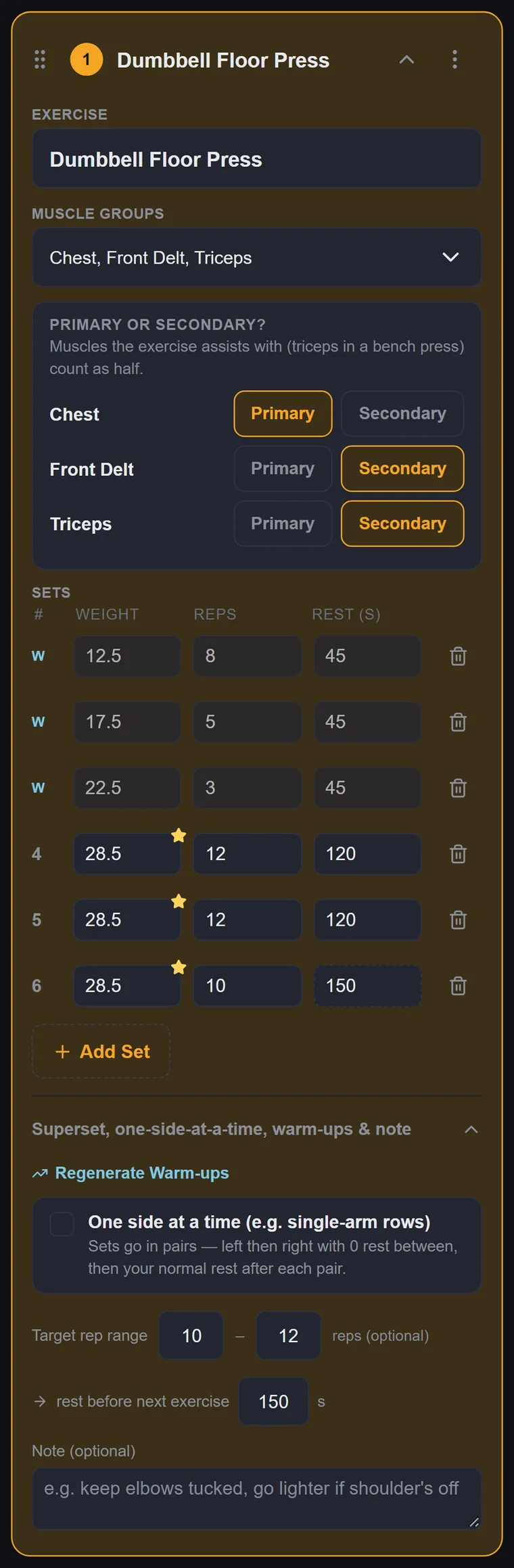
- Exercise: type a name. Rebar suggests names from your own history first, then a list of common exercises. You can type anything.
- Muscle groups: the muscles it works. These feed your heatmap and weekly sets. For each muscle you can mark it Primary or Secondary: muscles an exercise only assists with count for half.
- Sets: one row per set with weight, reps and rest (s), the seconds to rest after that set. Add Set adds another. The gold star beside a weight marks one that matches or beats your best for that exercise.
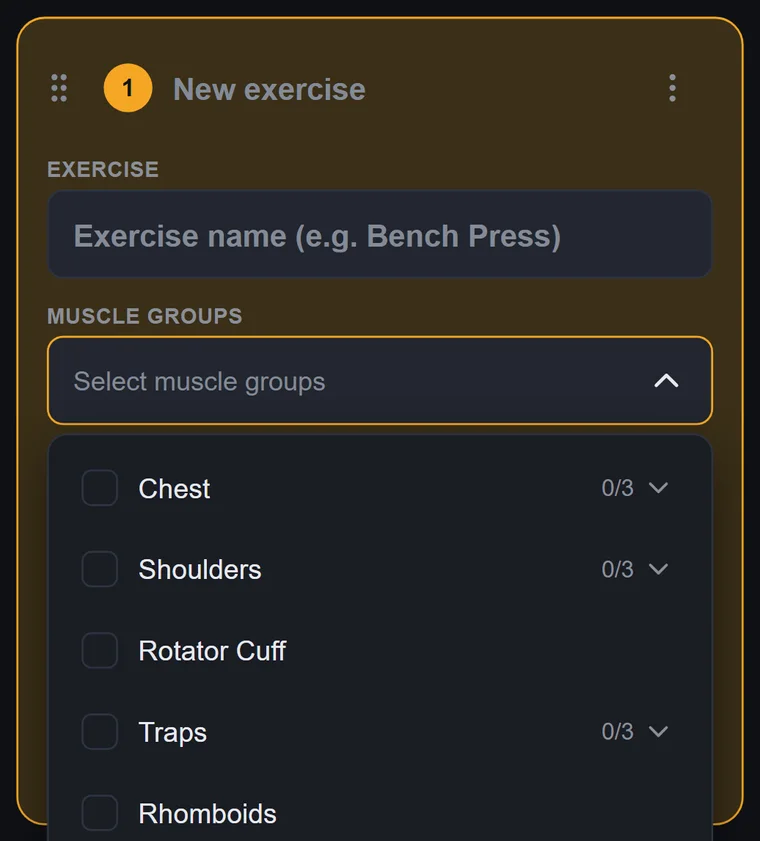
Choosing muscle groups
Superset, one side at a time, warm-ups and notes
Under each exercise, Superset, one-side-at-a-time, warm-ups & note opens extra options:
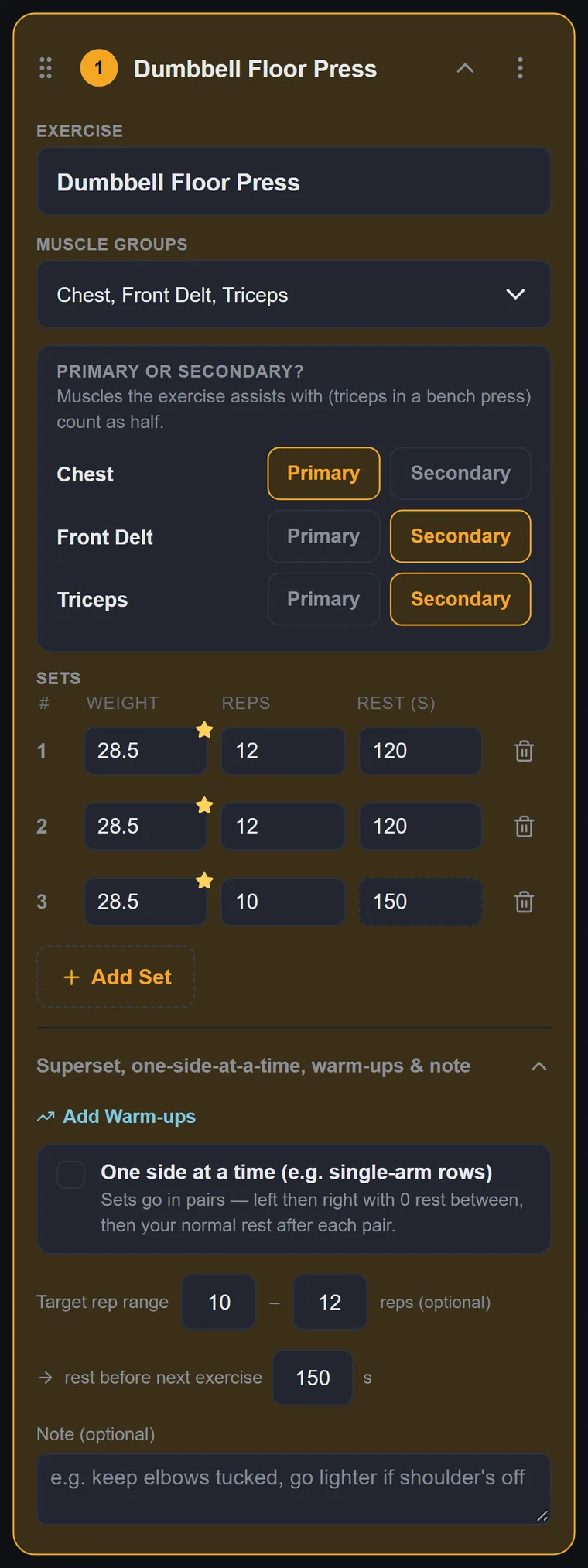
- Add Warm-ups builds a few lighter sets, marked W, leading up to your working weight. They are left out of your working-set totals, volume and personal bests. Regenerate Warm-ups rebuilds them if you change the weight.
- Superset with the exercise above starts this exercise straight after the last set of the one above, with no rest in between. (This switch appears from the second exercise onwards.)
- One side at a time is for single-arm or single-leg work. Sets go in pairs, left then right with no rest between, then your normal rest after each pair.
- Target rep range: a minimum and maximum. When you hit the top of the range on every working set, Rebar suggests a heavier weight next time.
- Rest before next exercise: the gap between this exercise and the next.
- Note: anything to remember about this exercise.
Saving and starting
- Save as Routine keeps this plan so you can load it again.
- Workout note at the bottom is for the whole session.
- Start Workout begins the timer and the first set.
4Doing the workout
Once you tap Start Workout the screen changes to focus on one set at a time.
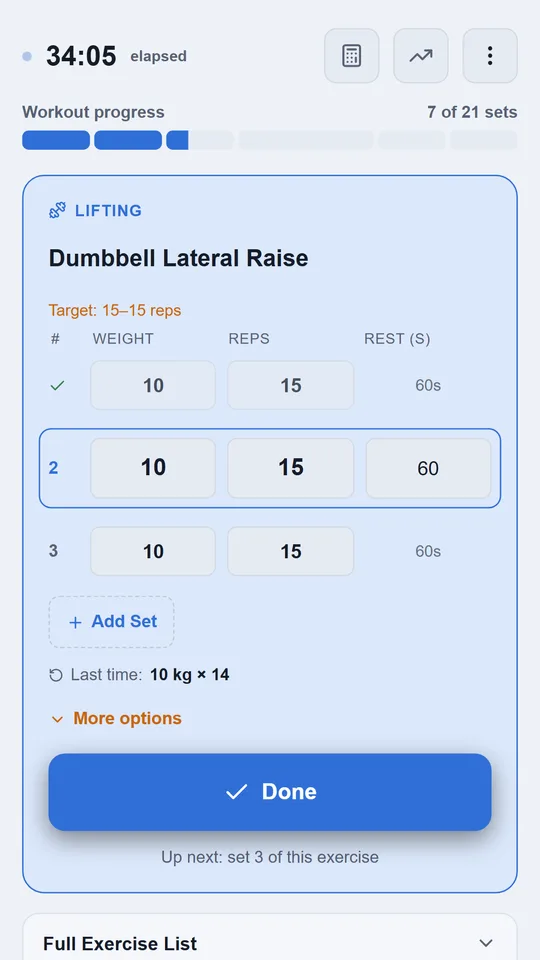
The top shows how long the workout has been running. The card below is your current exercise, with its sets in a table. The highlighted row is the set you are on. Check or change the weight, reps and rest, then tap Done.
The Done button stays pinned to the bottom of the screen, so it is always within reach even with a long list of sets. Add Set adds another set to this exercise, Last time shows what you did on this exercise before, and Up next tells you what is coming.

The top of the screen
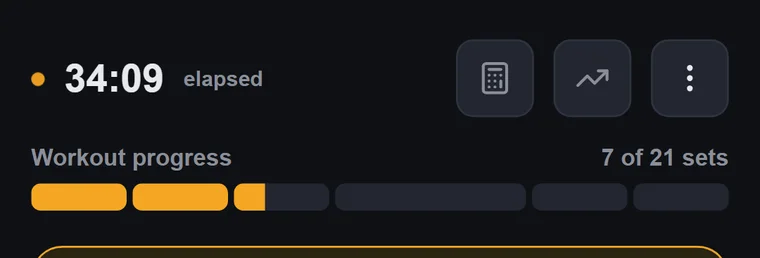
- Elapsed: the workout time so far.
- Calculator: the plate calculator.
- Chart arrow: opens Progress for the exercise you are on.
- Three dots: the workout menu, described below.
- Workout progress: one segment per exercise, filling as you finish sets. To jump to a different exercise, tap its segment and tap again to confirm.
The set table
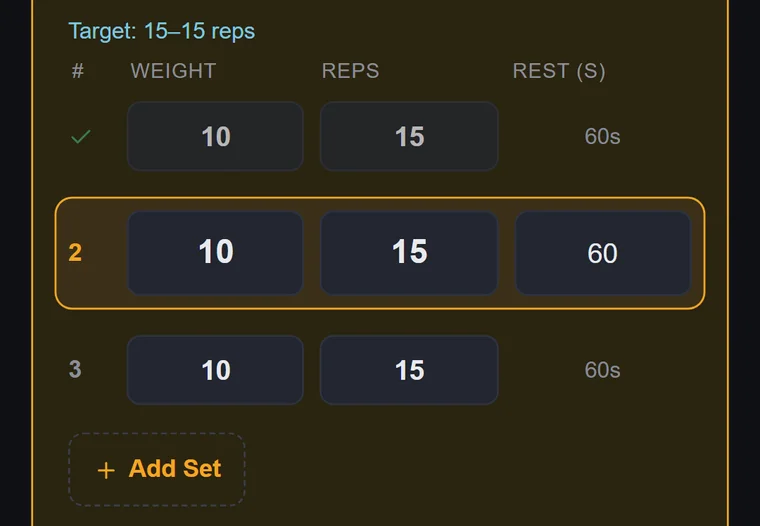
Target shows the rep range you set. When your last session hit the top of that range on every set, a gold banner offers a heavier weight, with a Use 30 kg style button that fills in your remaining sets. It is only a suggestion.
Resting
Tapping Done starts the rest timer. The card turns blue and counts down. Tap Skip to end the rest early. When it reaches zero you get a beep and, if your phone allows, a short vibration.
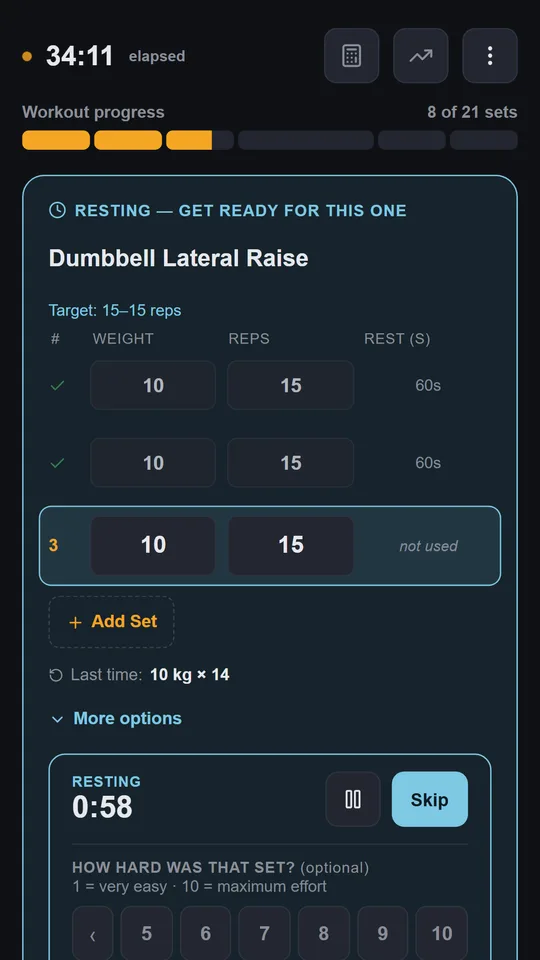
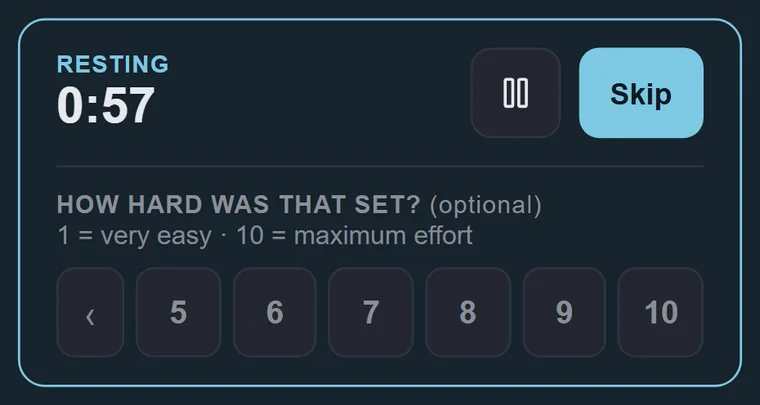
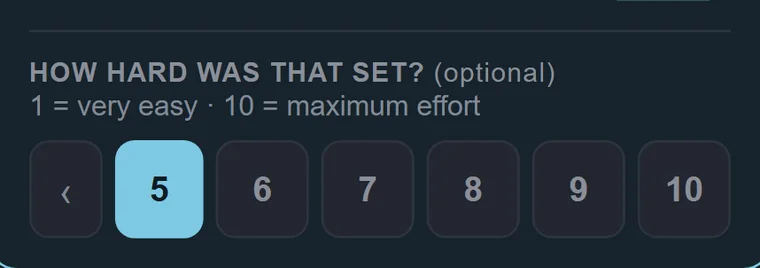
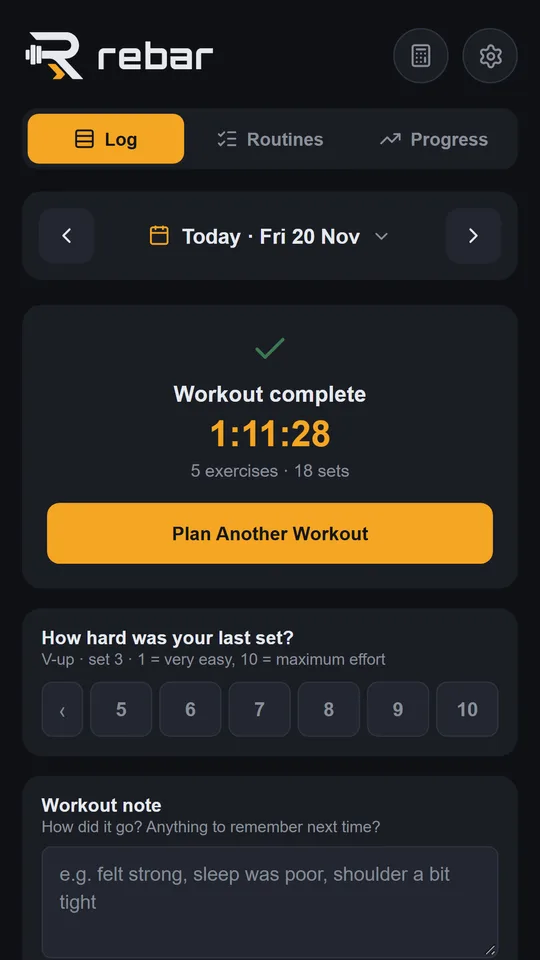
How hard was that set? is an optional effort rating from 1 (very easy) to 10 (maximum effort). It starts at 5 to 10; tap the ‹ button for 1 to 4. Tap your choice again to clear it. It is saved with the set and included in your CSV export.
Auto and Manual rest
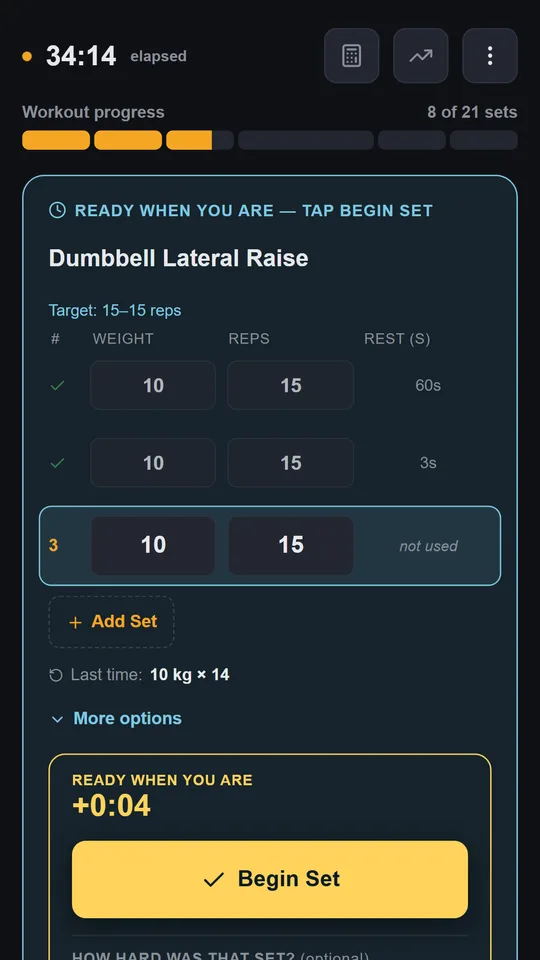
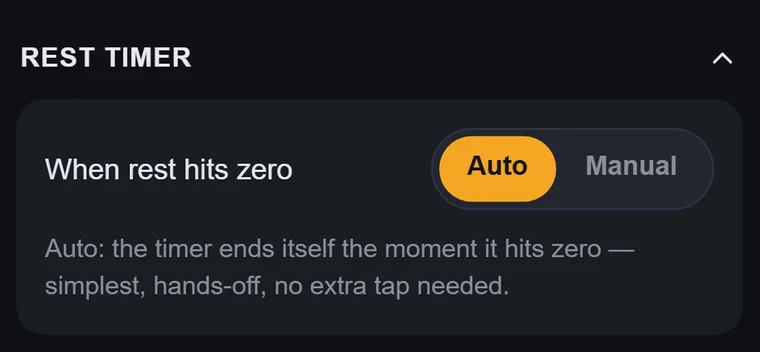
In Settings then Rest Timer you choose what happens at zero. Auto ends the rest and moves on. Manual beeps at zero and then counts up in overtime until you tap Begin Set, so a real delay after the beep is recorded as rest rather than folded into the next set. If you wait more than three minutes the card turns red and says Still waiting.
The full exercise list
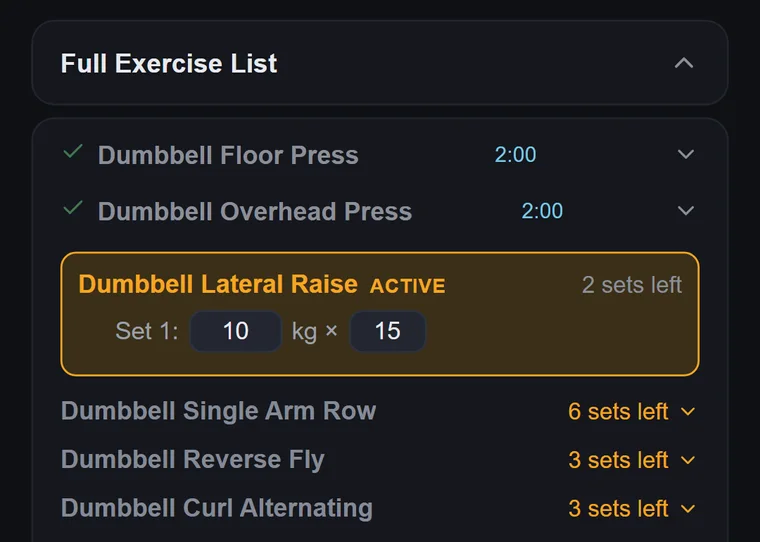
Below the card, Full Exercise List shows every exercise with its rest, how many sets are left, and which one is active.
The workout menu
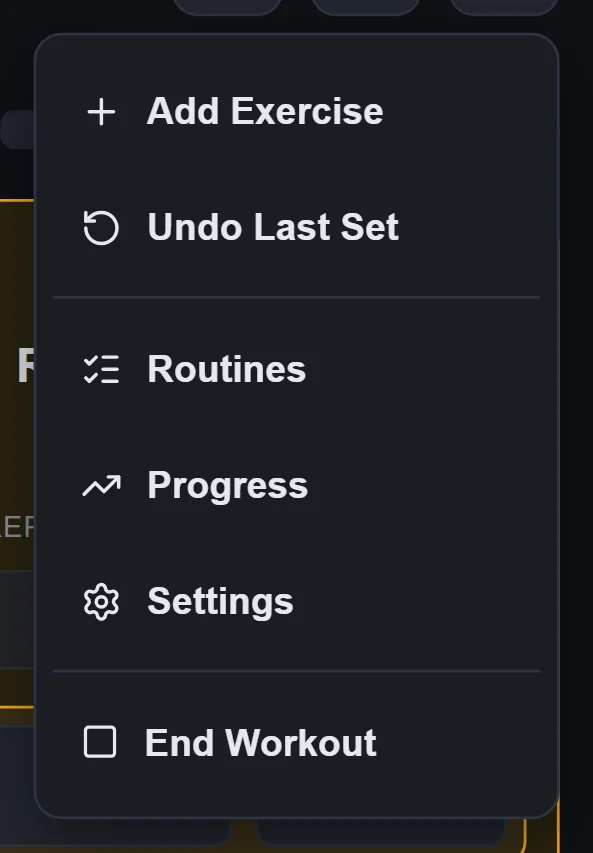
The three dots at the top right open a menu:
- Add Exercise: add another exercise to this workout.
- Undo Last Set: take back a set you logged by mistake.
- Routines, Progress, Settings: jump to those screens without ending the workout.
- End Workout: finish early. It asks you to tap again to confirm.
More options on the card
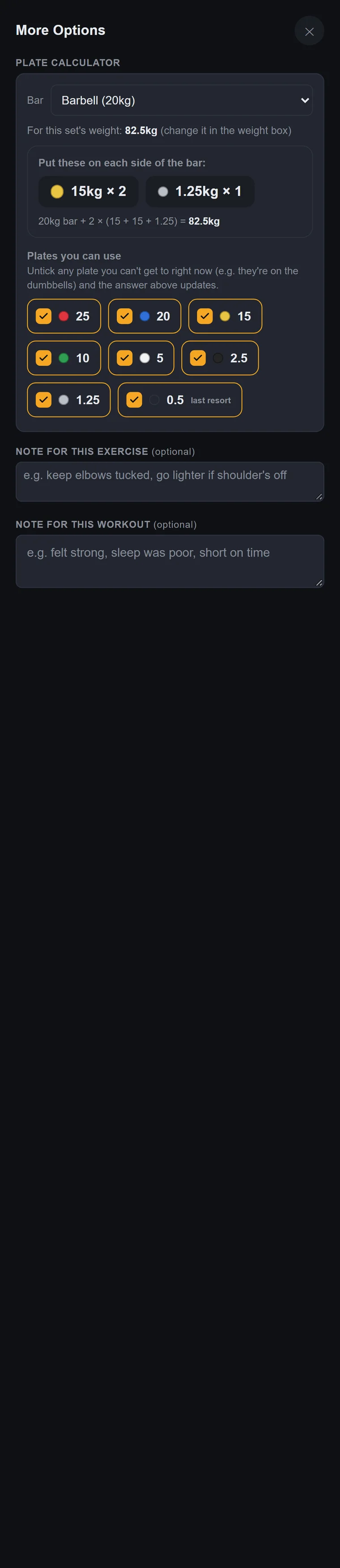
Tap More options on the exercise card for a plate calculator set to that set's weight, plus notes for this exercise and for the whole workout.
The notification
While a workout is running, Rebar shows an ongoing notification with your current exercise and the rest countdown, on the notification shade and the lock screen. You can tap Skip or Done from the notification itself, so you do not have to unlock your phone between sets. Rebar also keeps the screen awake while a workout is running.
Double taps
Begin Set, Skip and Done sit in the same place, so a very quick double tap could once log a set by accident. Rebar now ignores a Done tap that arrives within a moment of the rest ending or of the previous Done.
5Finishing and your workout report
A workout ends when you log the final set, or when you choose End Workout.
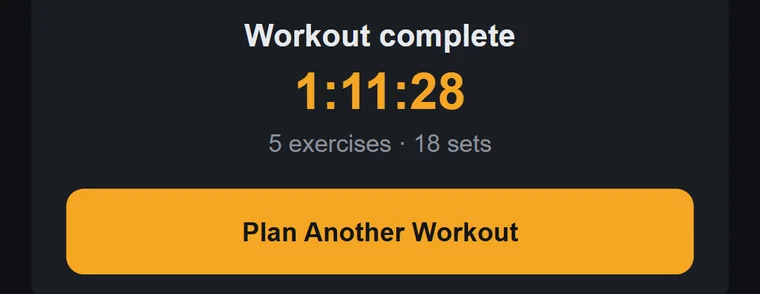
You see a Workout complete summary with the total time, exercises and sets. From there you can rate how hard your last set was (it has no rest screen of its own), add a workout note, and tap Plan Another Workout.
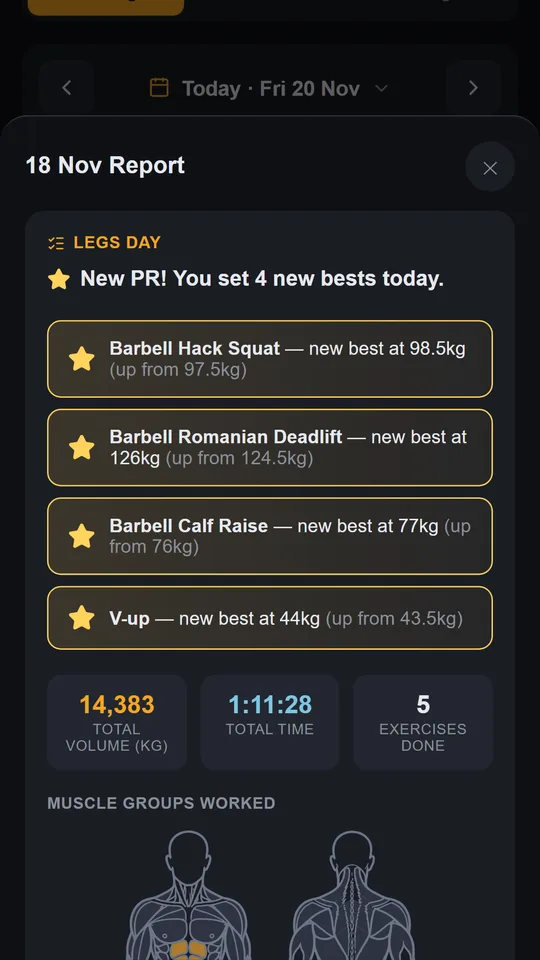
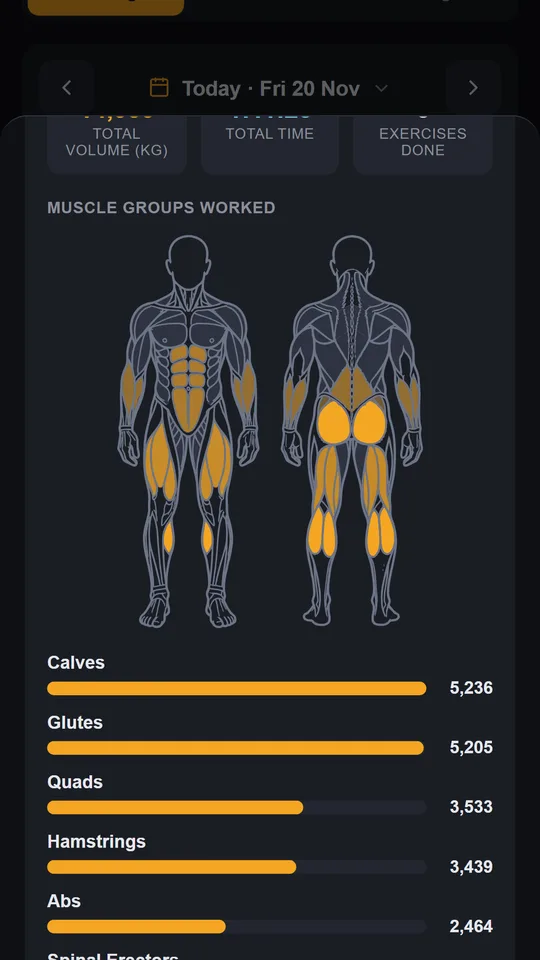
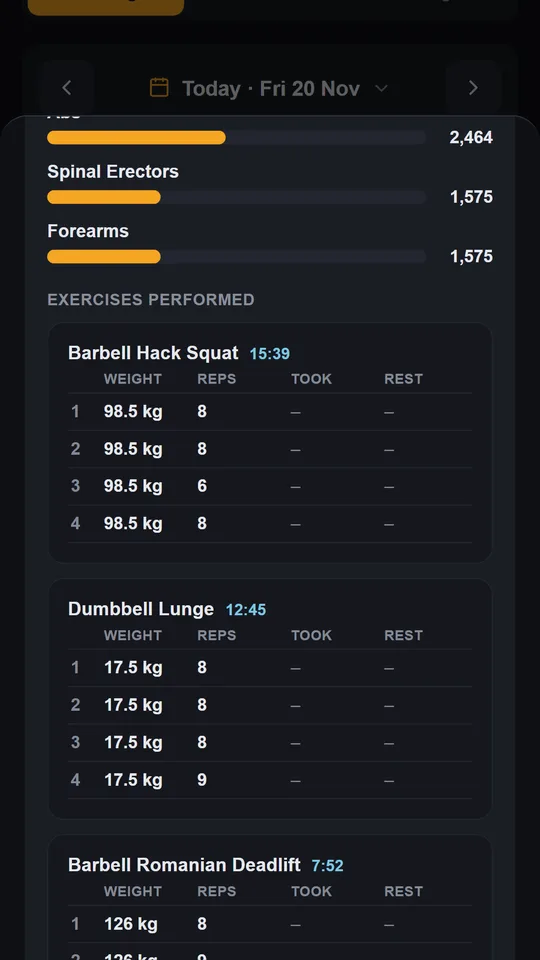
Below is the workout report: a banner for any new personal bests (for example “New PR! You set 4 new bests today”), your total volume, total time and exercises done, a body diagram of the muscle groups you worked with volume by muscle, and an Exercises performed section listing every set with its weight, reps, time taken and rest. You can reopen the report of any past workout from History: expand the workout and tap View Report.
6Routines and your week
Save the workouts you repeat, and tell Rebar which day does what.
The schedule
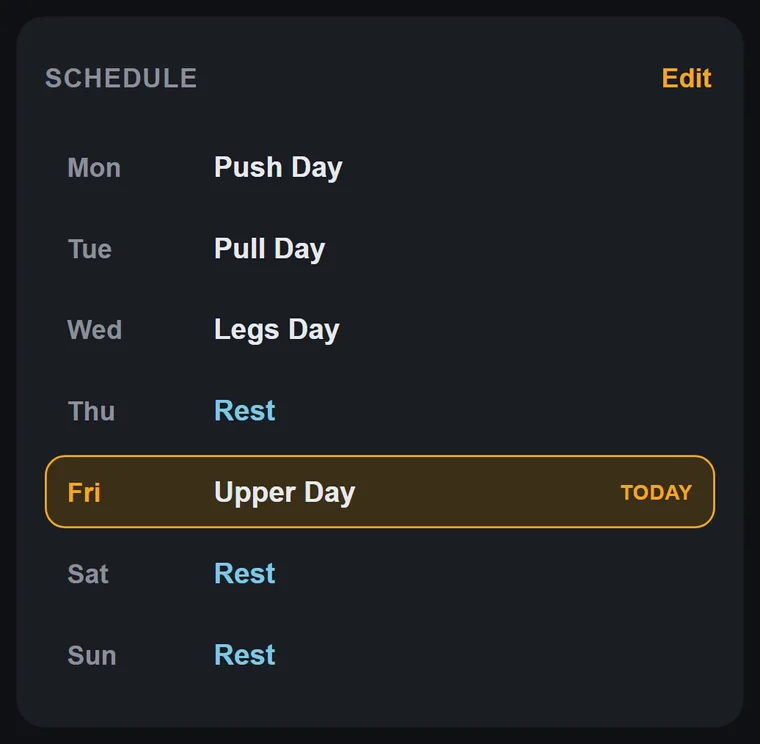
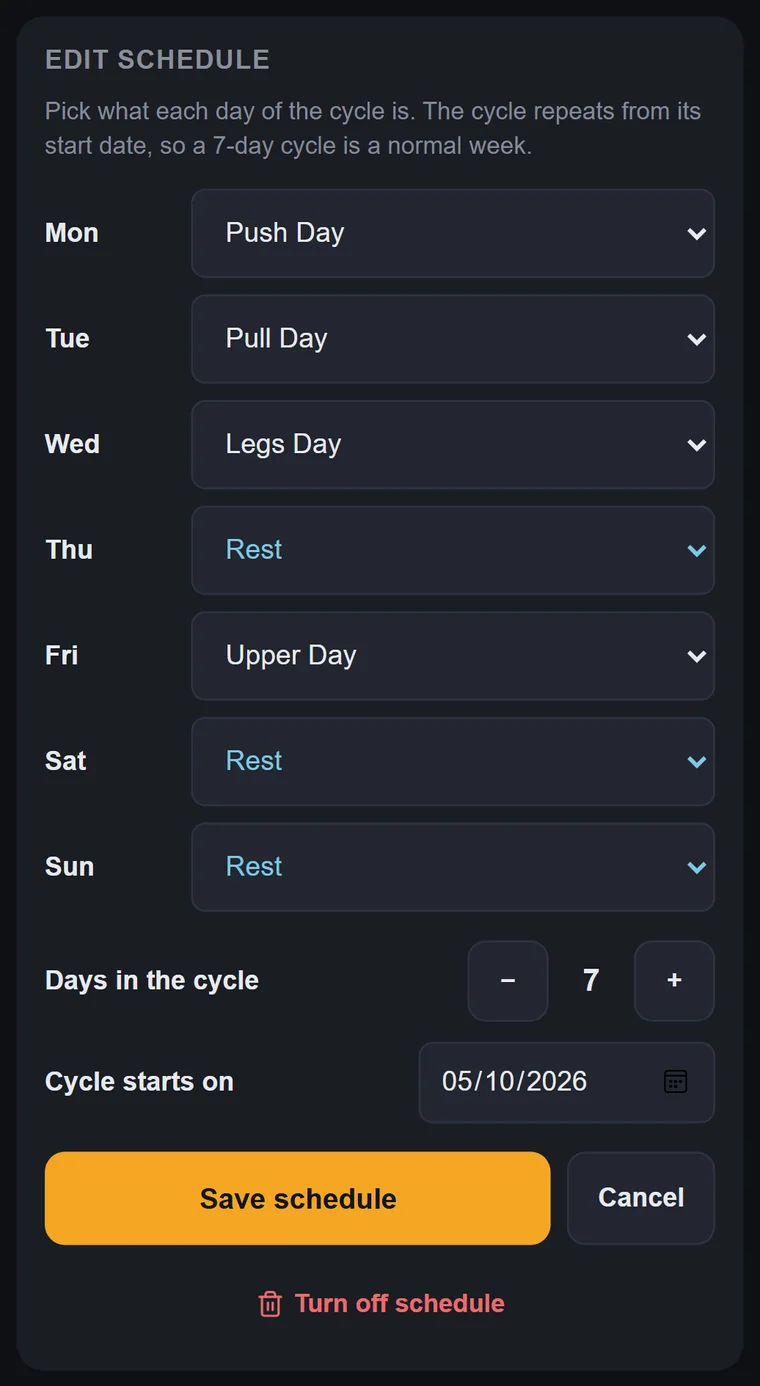
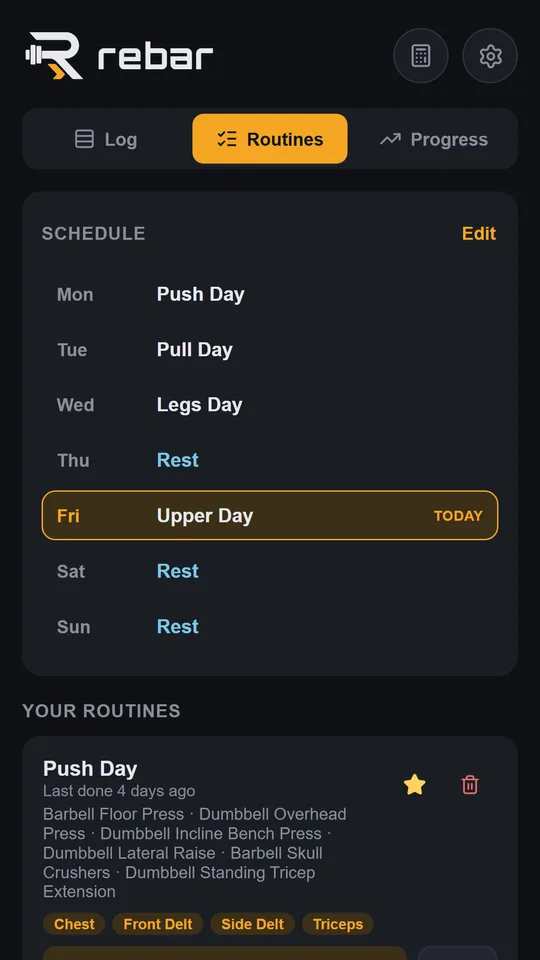
The Schedule card shows a repeating cycle, a week by default. Each day is a routine, a rest day or free. Today is highlighted. Tap Edit to change it, then Save schedule (or Cancel). Turn off schedule switches the plan off. You can also change Days in the cycle (for example a 4-day cycle instead of a week) and the date the cycle starts on.
Today's slot drives the Scheduled today card on the Log tab, the Up next label, and automatic rest days.
Your routines
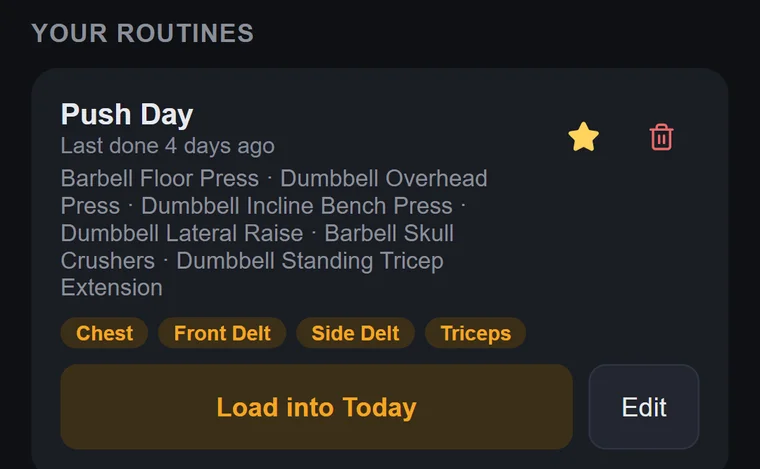
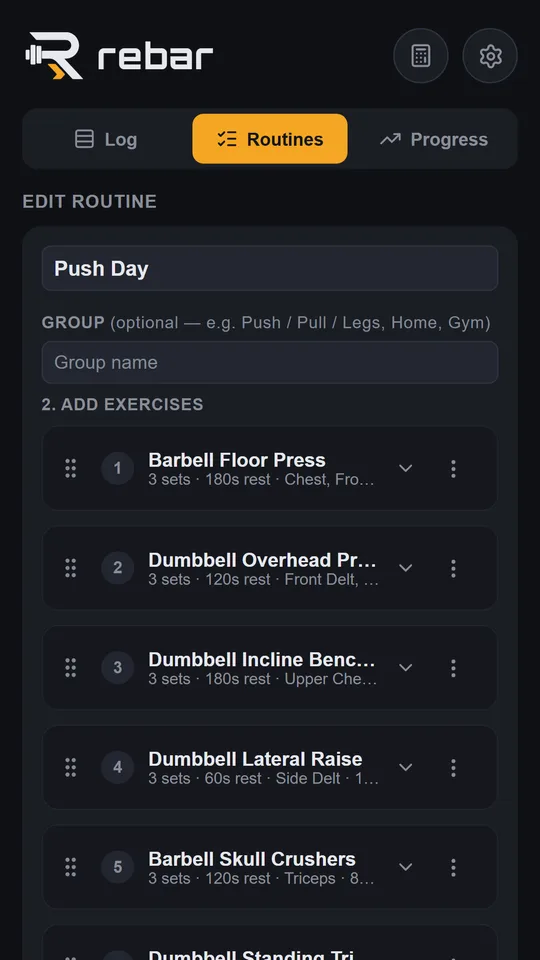
Each routine card lists its exercises and the muscle groups it hits, and when you last did it. Load into Today puts it in your plan, and Edit changes it. New Routine at the bottom builds one from scratch. You can also save any plan on the Log tab with Save as Routine. A routine can have an optional group name (for example Push, Home or Gym) to keep a long list tidy.
7Progress
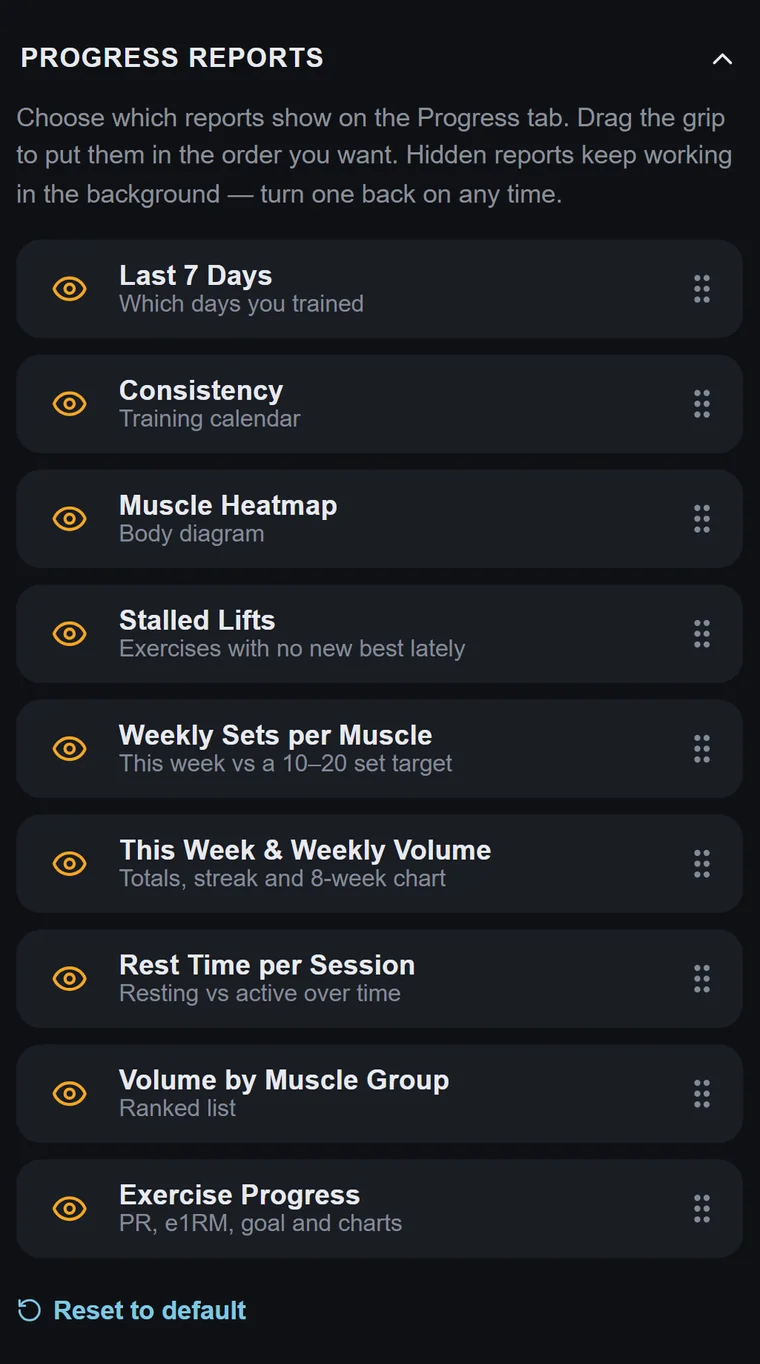
Reports built from everything you log. You can hide any report you do not use and drag them into your preferred order in Settings, under Progress Reports.
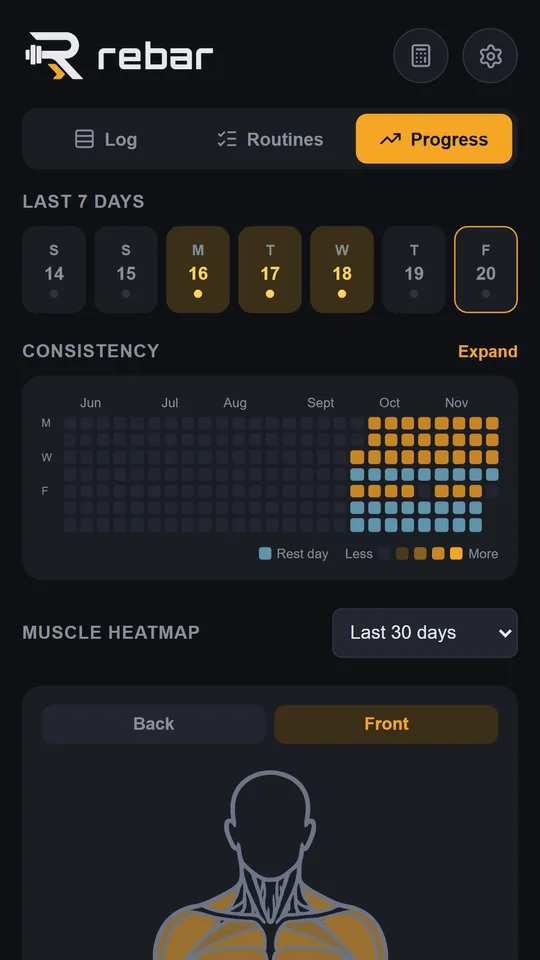
Last 7 days
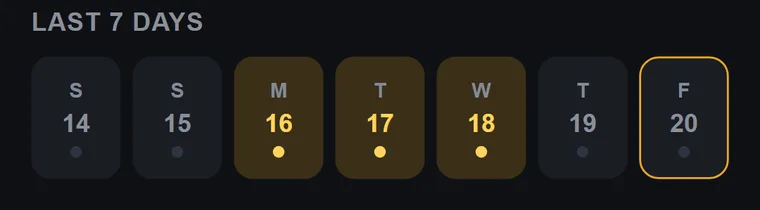
One tile per day for the past week. A highlighted amber tile means you trained that day, and the outlined tile is today.
Consistency
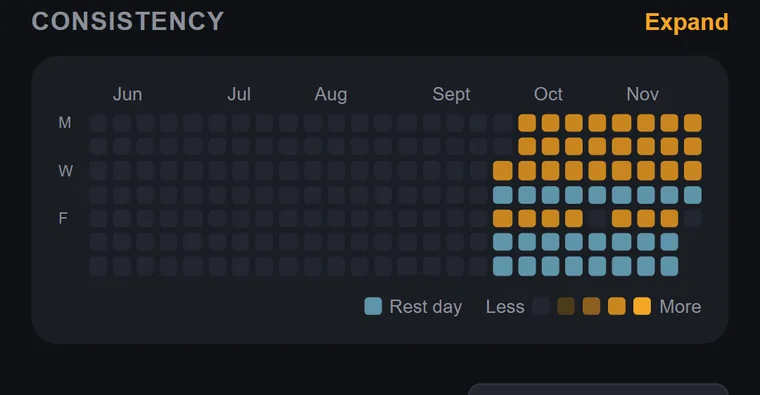
A training calendar, one square per day: amber for workouts (brighter for more work), blue for rest days. Tap Expand for a longer view.
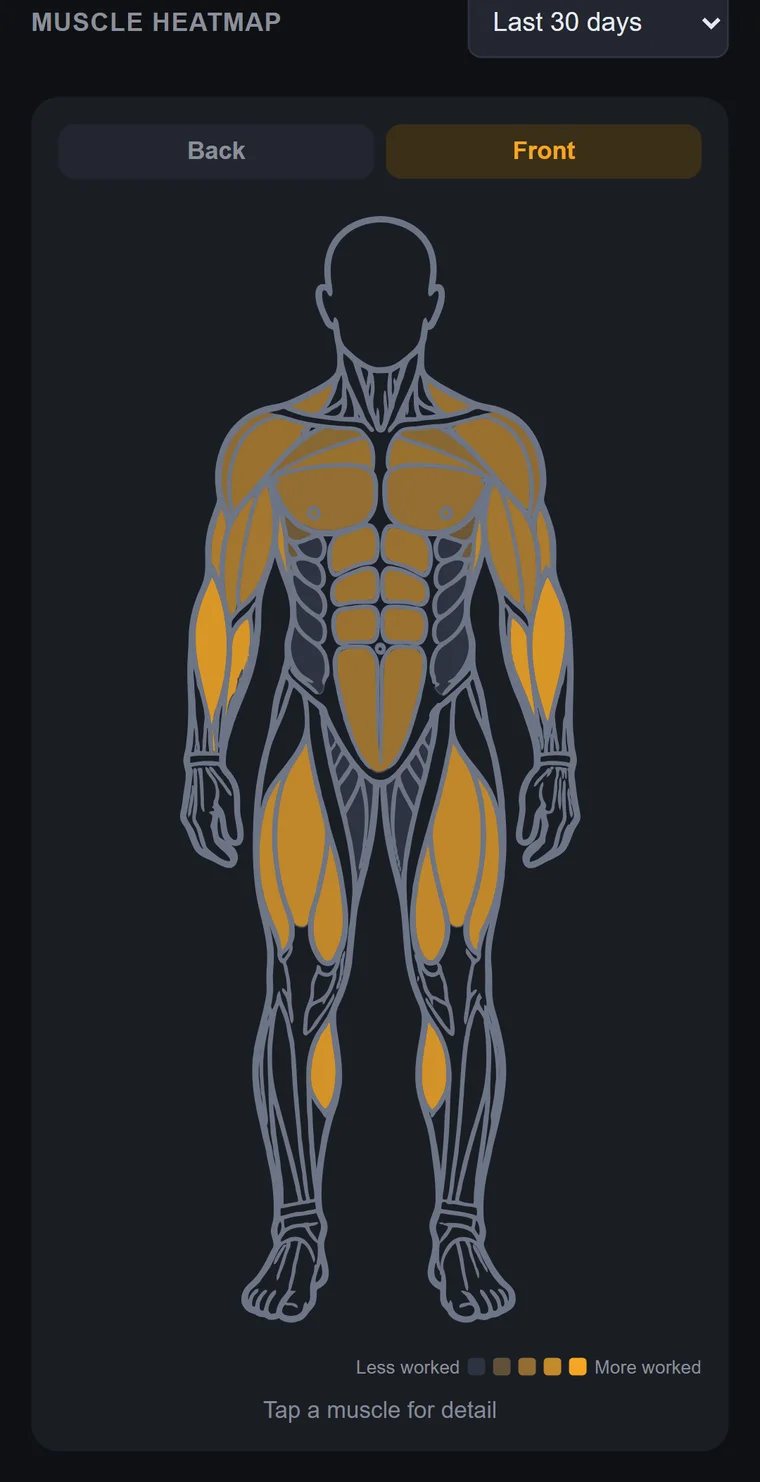
Muscle heatmap
A body diagram that lights up the muscles you have worked, for today, the last 7, 30 or 90 days, or all time. Brighter means more work. Use Back and Front to turn the figure, and tap a muscle for the detail behind it. The muscle groups come from the exercises you log; muscles an exercise only assists with count for half.
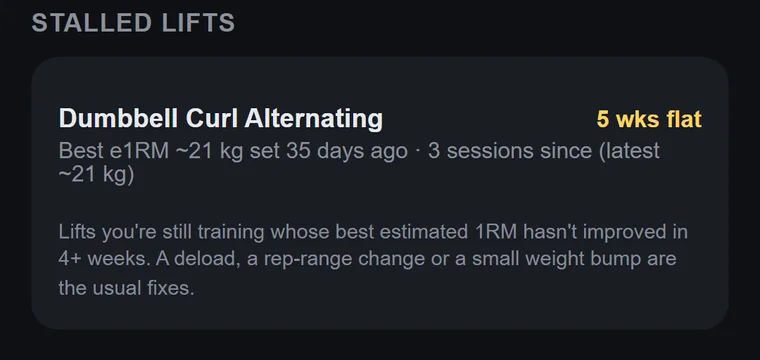
Stalled lifts
Exercises you are still training whose best estimated one-rep max has not improved in four or more weeks. A deload, a change of rep range or a small weight increase are the usual fixes.
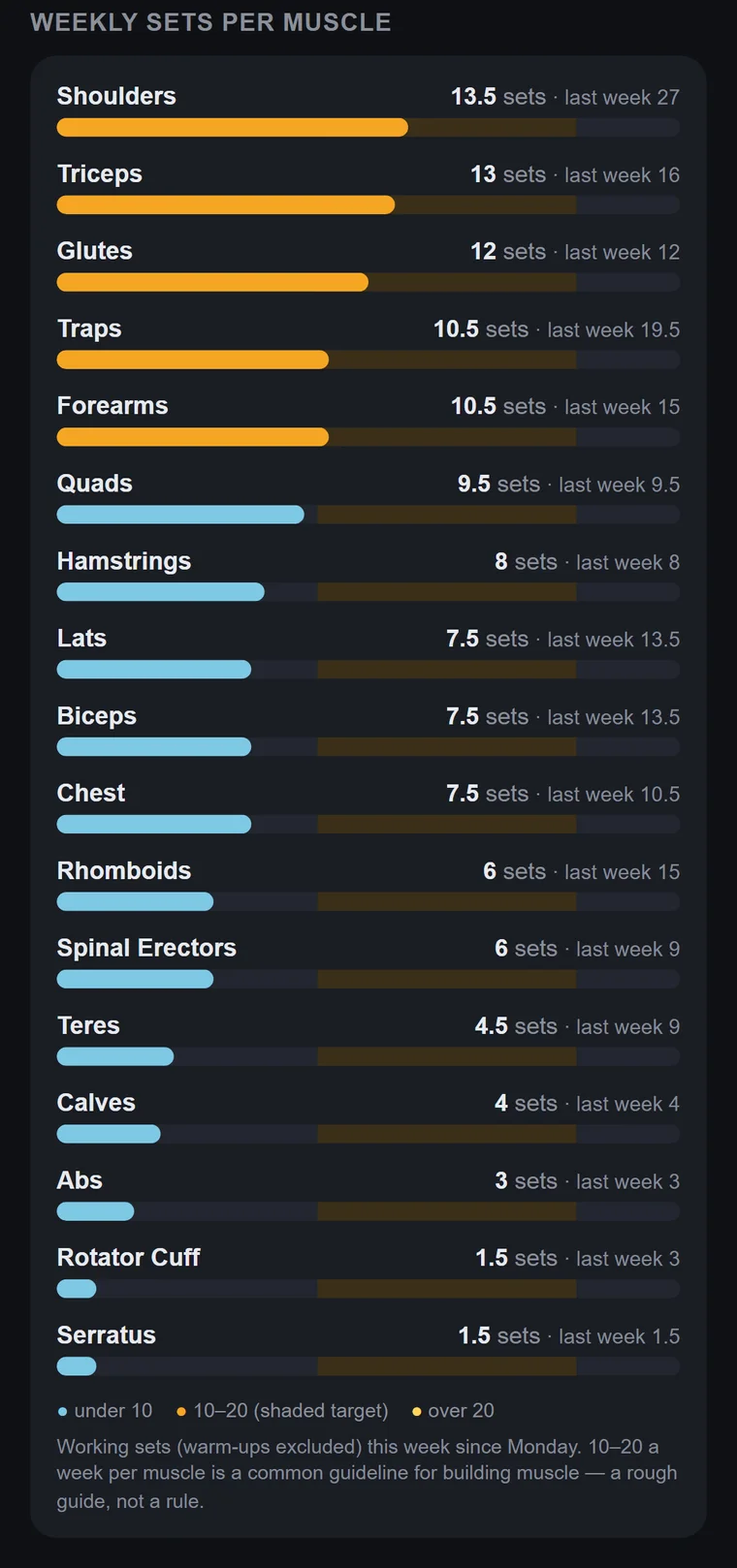
Weekly sets per muscle
Your working sets for each muscle since Monday, next to last week's total. Warm-ups are excluded. The bars are shaded against a 10 to 20 sets a week target, a common rule of thumb for building muscle. Treat it as a rough guide, not a rule.
This week and weekly volume
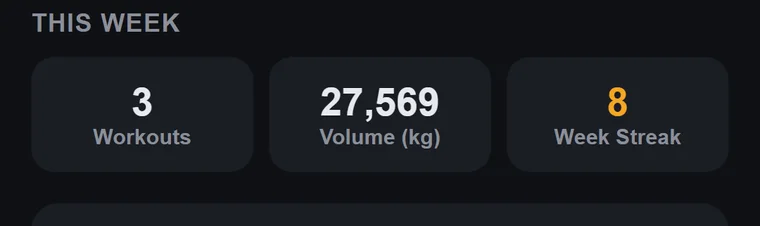
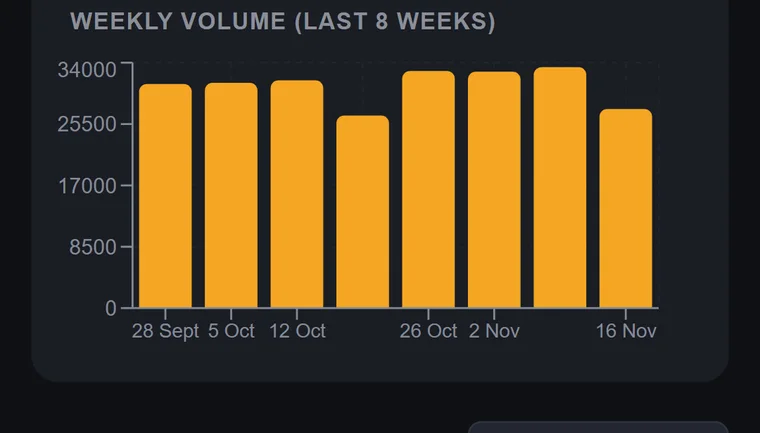
Workouts finished this week, total volume (weight × reps across working sets), and your week streak: the number of weeks in a row, counting back from this one, with at least one finished workout. The chart below shows the last eight weeks.
Rest time per session
Resting versus active time across your sessions, so you can spot a slump or a building habit that a single week cannot show.
Volume by muscle group
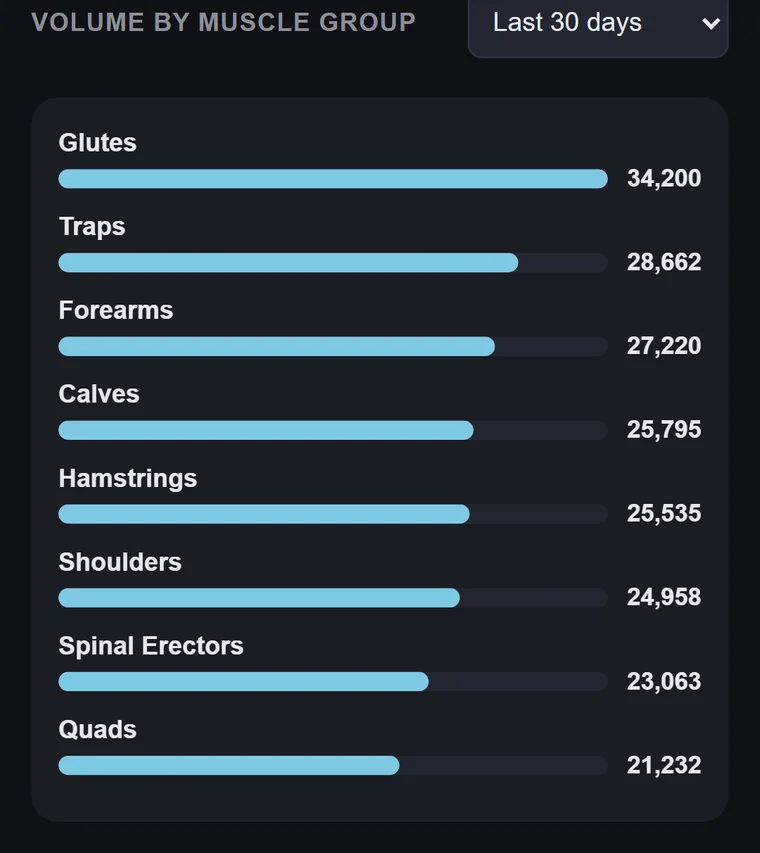
A ranked list of how much volume each muscle group has had over the period you choose.
Exercise progress
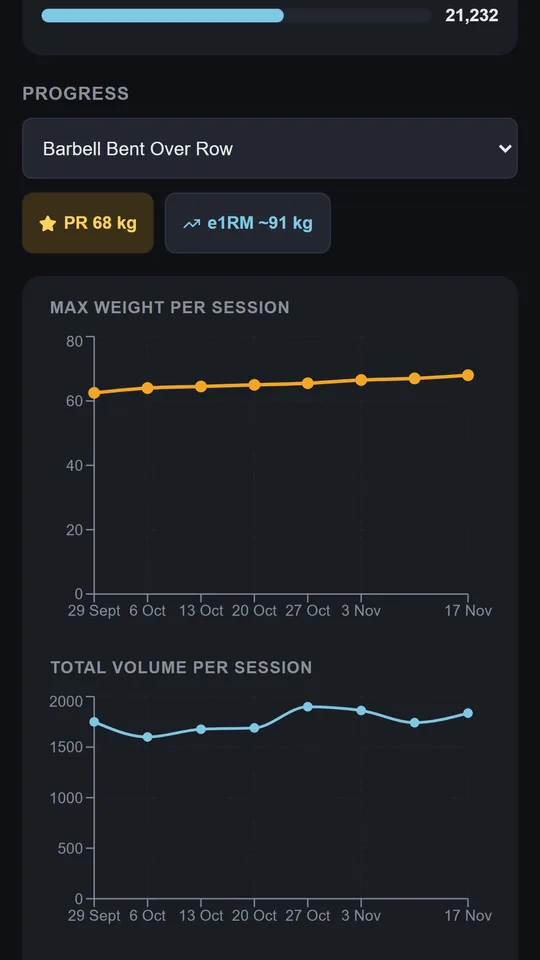
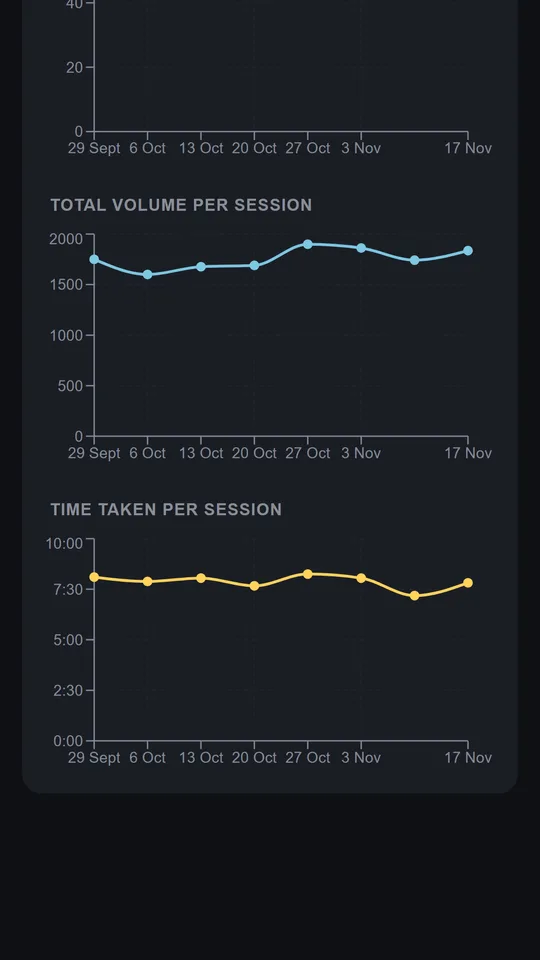
Pick any exercise you have logged to see its personal record, its estimated one-rep max (e1RM, from the Epley formula: weight × (1 + reps ÷ 30)), your goal if you have set one, and charts of max weight per session, total volume per session and time taken per session. The e1RM lets you compare sets with different weights and reps. It is an estimate, not a test.
8Plate calculator
Tell it the weight, and it tells you which plates to load on each side.
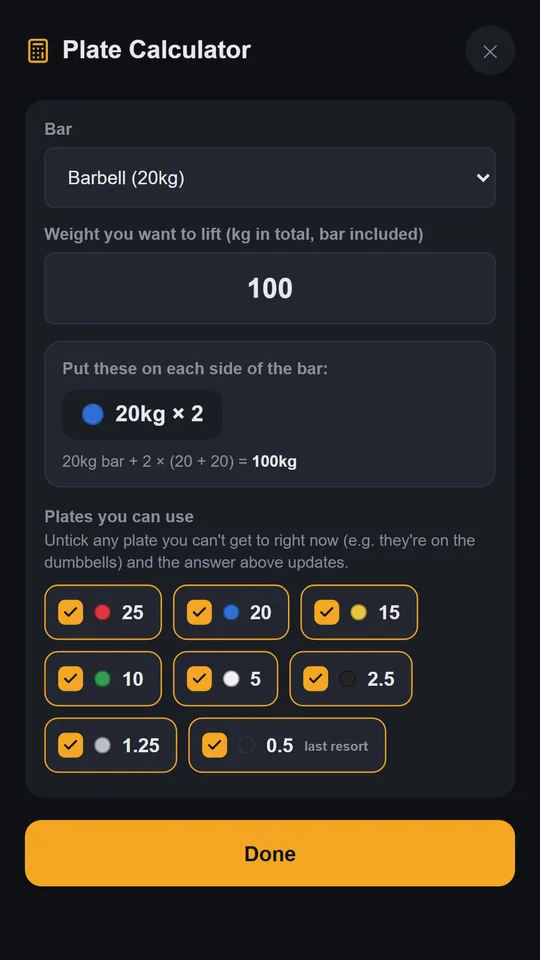
- Tap the calculator button at the top of the app (or More options during a set, which uses that set's weight).
- Choose the bar you are using.
- Enter the target weight.
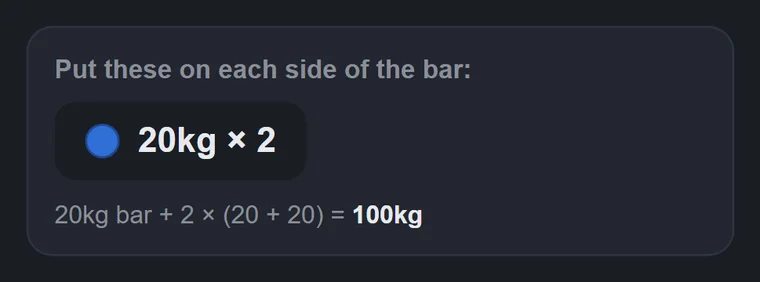
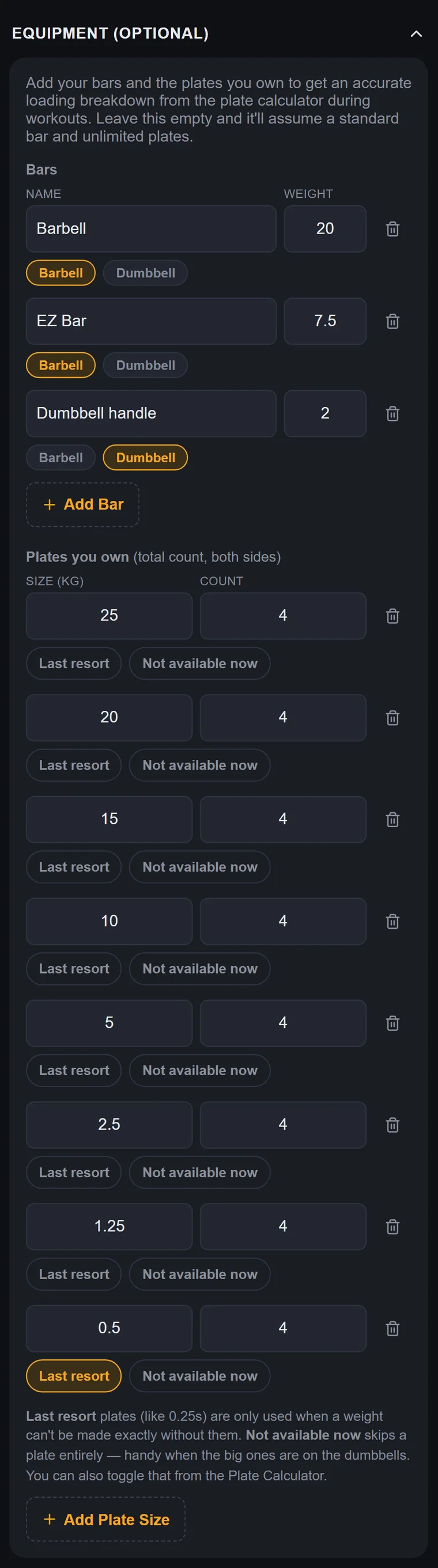
Rebar shows the plates for each side of the bar, and the sum it used so you can check it. The calculator uses the plates you own, so tell it what you have in Settings, Equipment. If you have not set that up, it assumes a standard bar and unlimited plates.
Plates marked last resort (such as 0.25 kg) are only used when a weight cannot be made exactly without them. Untick a plate size to skip it, handy when the big ones are on the dumbbells.
9Settings
Open the cog at the top right (or the three-dot menu during a workout). Tap a heading to open or close its section.
| Section | What it does |
|---|---|
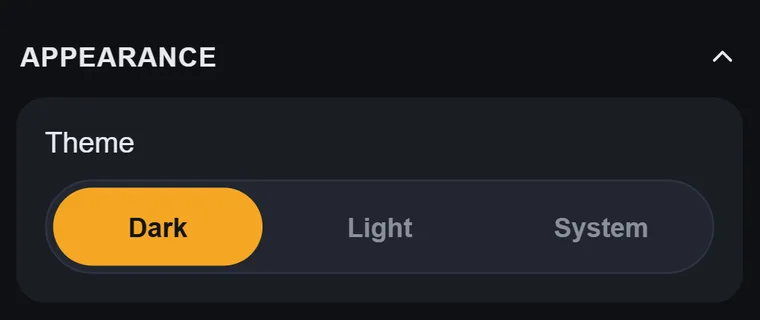
| Appearance | Dark, Light, or System (follows your phone). |
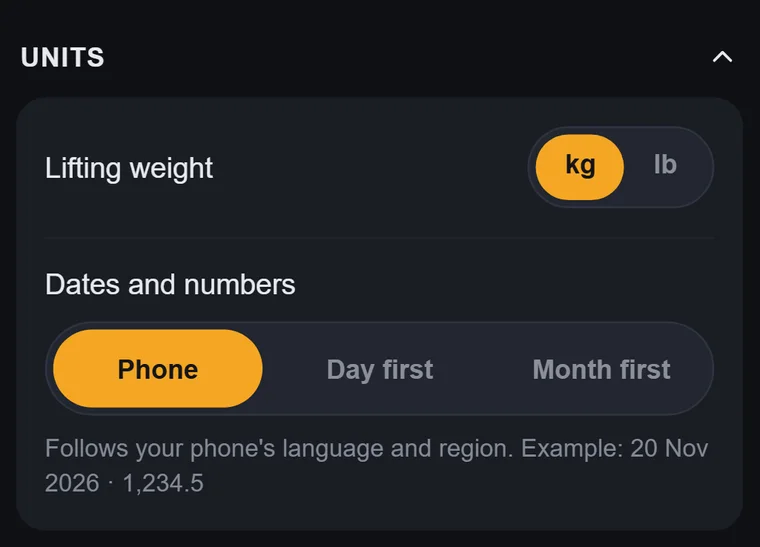
| Units | Kilograms or pounds (switching converts the weights you have already saved), and how dates and numbers are written. |
| Rest Timer | Auto: the timer ends itself at zero. Manual: it waits for Begin Set. |
| Equipment | Your bars and plates, for an accurate plate calculator. |
| Progress Reports | Show, hide and reorder the Progress tab's reports. |
| Goals | Target weights for lifts you have logged. |
| Export | Your whole history as CSV text for a spreadsheet. |
| Backup & Restore | Save everything to a file, or restore from one. |
| Scheduled Backups | Automatic daily or weekly backups to a folder (installed Android app only). |
| Help & feedback | Rate Rebar, share it, send feedback, or replay the intro. |
Dates and numbers
Under Units, Dates and numbers chooses how dates and large numbers are written. Phone (the default) follows your phone's language and region. Day first writes 20 Nov 2026, and Month first writes Nov 20, 2026. Numbers use a comma for thousands either way. The change applies everywhere straight away: the calendar, History, Progress and the reports.
Equipment
Add your bars (name, weight, and whether it is a barbell or a dumbbell) and the plates you own, with the total count across both sides. Mark small plates as Last resort, or Not available now to skip a size entirely.
Progress Reports
Switch reports on or off, and drag the grip to put them in your preferred order. Hidden reports keep working in the background, so turning one back on shows its full history.
Goals
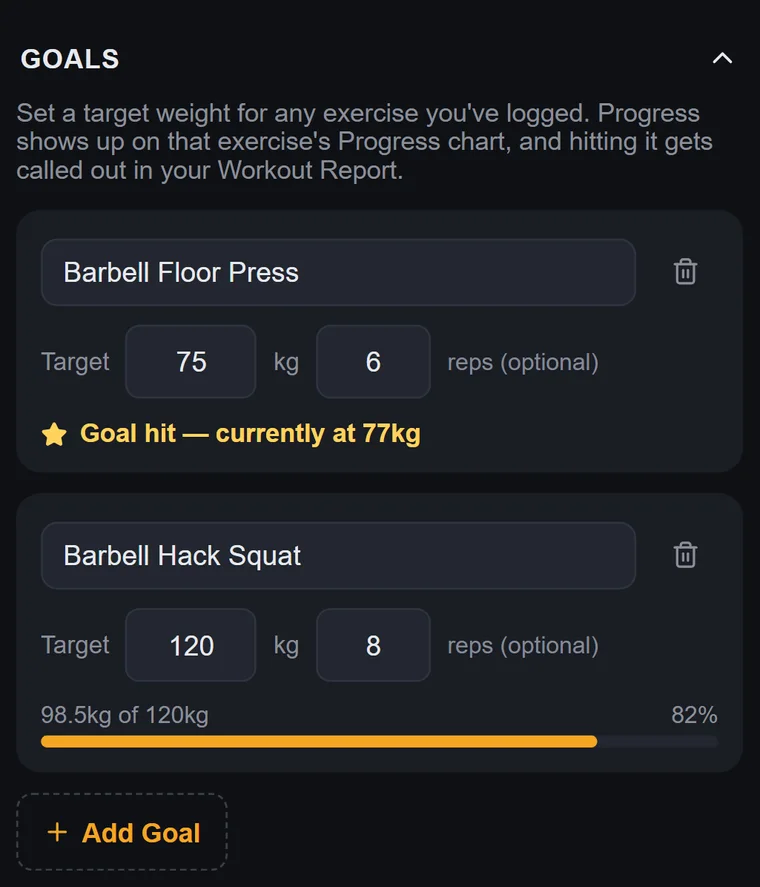
Add a target weight (and optionally reps) for any exercise you have logged. Progress appears on that exercise's chart and on the goal itself, and hitting it is called out in your workout report.
Help & feedback
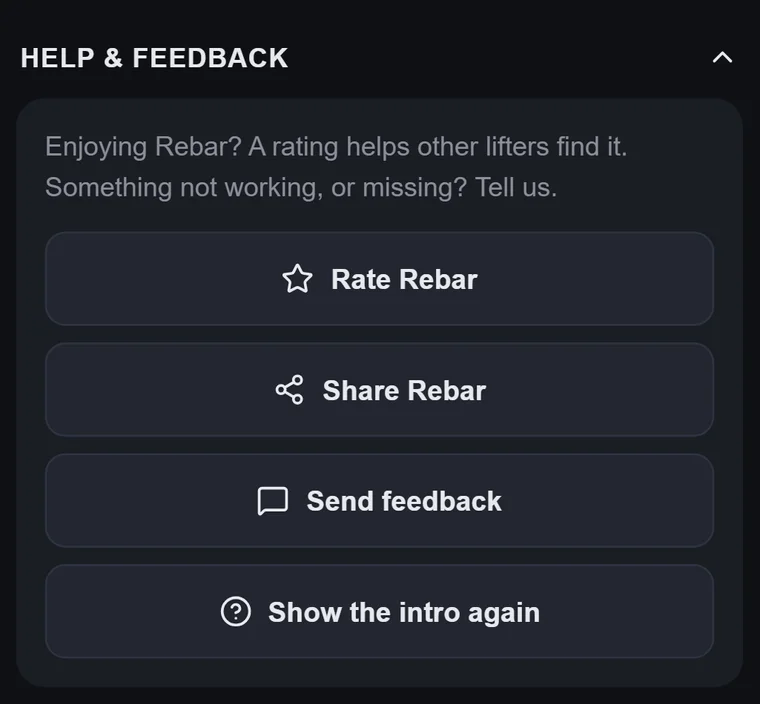
- Rate Rebar opens the app's Play Store page, where a rating helps other lifters find it.
- Share Rebar opens Android's share sheet with a short message and the Play Store link.
- Send feedback opens the contact form in your browser. Bug reports and ideas are welcome.
- Show the intro again replays the welcome cards.
Rate and Send feedback open the Play Store and your browser. Rebar itself only uses the internet to send an anonymous crash report if something goes wrong.
10Backups and moving to a new phone
Your history lives only on your phone. There is no cloud copy, so make a backup now and then.
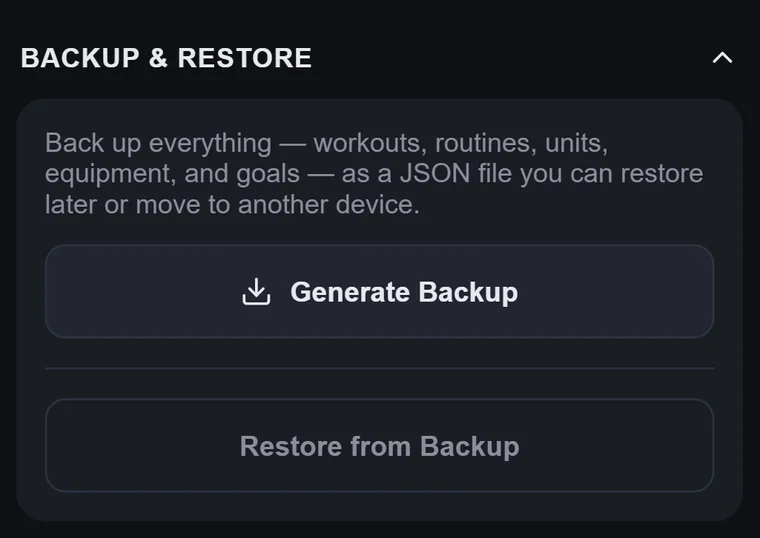
Make a backup
- Open Settings then Backup & Restore.
- Tap Generate Backup.
- Tap Save File and choose where to keep it (Google Drive, your email, anywhere), or Copy to Clipboard.
The file holds everything: workouts, routines, units, equipment and goals.
Back up automatically
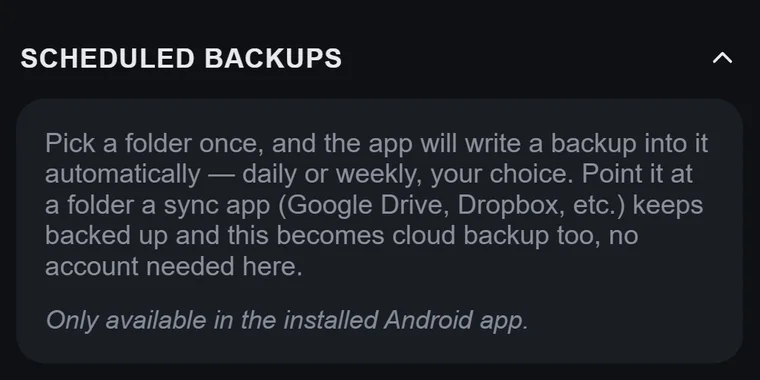
In Scheduled Backups, choose a folder once and pick daily or weekly. Point it at a folder that Google Drive, Dropbox or another sync app keeps backed up and it doubles as a cloud backup, with no account in Rebar. Backups run the next time you open the app after the interval has passed, rather than in the background while the app is closed.
Move to a new phone
- On the old phone, make a backup and save the file.
- Get the file onto the new phone (Drive, email or a cable).
- Install Rebar on the new phone.
- Open Settings, Backup & Restore, tap Restore from Backup and choose the file.
Use your data in a spreadsheet
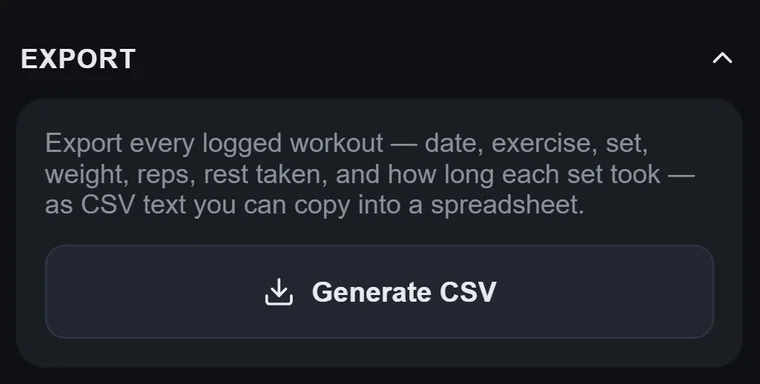
In Export, tap Generate CSV. You get every logged set (date, routine, exercise, muscle groups, set number, warm-up flag, weight, unit, reps, effort rating, rest taken, time taken and when it was completed) as text you can save or copy into any spreadsheet app.
11Tips
- Build routines once. Save the days you repeat, then set a weekly schedule. Most days it is a single tap to load.
- Use Repeat Last Workout when you are not following a routine.
- Set a target rep range on the lifts you want to progress. Rebar then tells you when to go heavier.
- Try Manual rest if you want honest rest times. It records the time you actually take, not only the time you planned.
- Add your plates in Equipment once, and the calculator and weight suggestions match what is in your gym or garage.
- Back up regularly, or switch on a scheduled backup to a synced folder.
- Light or dark? System mode follows your phone, so the app matches the time of day.
Need more help?
Check the FAQ, or send a message from the contact form. Rebar is a logbook, not medical advice: speak to a qualified professional before changing your training if you have a health condition or an injury.